
Open Settings > System > Focus and attempt a short session, then try Focus sessions inside the Windows Clock app. If the timer cannot start, distinguish a Clock app problem from a notifications or Microsoft To Do integration problem. Check Windows and app updates, review Do Not Disturb, and use the supported app Repair option before considering Reset. Never delete your tasks or reinstall Windows merely for a timer issue.
A Focus session is more than a countdown. Windows can coordinate the Clock timer, taskbar indicators, notifications and optional task integrations, which is why a single symptom can have different causes. The following workflow isolates the simplest issue first and keeps your personal task lists and Windows configuration intact.
Identify The Exact Focus Symptom
Start by separating four scenarios: the Start focus session button does nothing; Clock opens but a countdown will not run; a timer begins then stops; or the timer works but notifications and taskbar changes do not. Each scenario points to a different component. Record the Windows build and the action that produces the failure before changing settings.
A working countdown with missing notification suppression is not a broken timer. Conversely, a changed Do Not Disturb icon does not prove the Clock timer started. Microsoft documents both the Settings entry point and Focus sessions in Clock. Compare them on the same PC using a short test instead of immediately removing and reinstalling applications.
Try A Five Minute Focus Session From Settings
In Windows 11, open Settings, System, Focus and use the offered Start focus session action if your version provides it. Choose a short period so a failure can be reproduced without disrupting work. Check whether a timer interface opens, whether the expected countdown begins and whether the session completes. Keep one simple text document open as a neutral work item.
If the session completes correctly, the core functionality is likely available and any problem may involve a specific Clock view or optional integration. If the Settings action fails, repeat from Clock to see whether the problem affects both launch methods. Avoid logging out of your Microsoft account or clearing synchronized task data as an initial troubleshooting step.
For this related situation, read Windows 11 Do Not Disturb Keeps Turning On before trying unrelated repairs.
Open Focus Sessions Directly In Clock
Launch Clock from Start, then select Focus sessions. A functioning Clock app should let you begin a timed session, subject to the controls available in your installed version. Check that the app actually remains open and that the timer is not simply paused or behind another window. The Settings shortcut and the Clock tab are related but may expose different entry points.
If Focus works from Clock but not Settings, the issue may be the shortcut, a transient interface fault or Windows app integration. If neither route starts, test ordinary Clock features such as Alarms or Timer, without altering existing alarms. A broader Clock failure suggests application repair deserves priority over Do Not Disturb settings.
Distinguish Focus From Do Not Disturb
Starting a Windows Focus session can automatically enable Do Not Disturb so distracting alerts are quieted. That notification change is expected and does not mean something is wrong. A manually enabled Do Not Disturb mode, however, does not automatically create a Focus countdown. You must distinguish the notification policy from a timer session when deciding what needs repair.
Open Settings, System, Notifications to inspect automatic Do Not Disturb rules and priority notifications. If quiet mode starts at other times, the schedule or a full-screen trigger may be responsible instead of Clock. Do not disable all Windows notifications just to get a Focus timer running. Check the settings you actually need for calls and time-sensitive alerts.
Inspect Focus Session Duration And Breaks
Focus sessions can offer a duration and breaks according to the installed Clock experience. Start with a short, ordinary session rather than unusual durations or repeated restarts. Ensure the system date and local time are correct, since odd timekeeping can make a countdown or session log appear inconsistent. Observe the displayed remaining time before and after a minute passes.
If a timer starts but seems frozen, check whether the PC went to sleep or the Clock window was paused. A display turning off is not necessarily system sleep, and background behavior may differ by power mode. Reproduce the issue while the computer stays awake before concluding that Clock cannot keep time. Preserve other productivity settings until you isolate the problem.
For this related situation, read Windows 11 Start Menu Not Opening before trying unrelated repairs.
Check Whether Clock Has A Pending Update
Microsoft Store apps can receive updates separately from the Windows operating system. Open Microsoft Store, check Downloads or Library and look for updates to Windows Clock or related Microsoft components. Install available trusted updates, then close and reopen Clock. Updating the specific app is safer than downloading an unrelated timer installer from a third-party site.
Do not assume the latest Windows cumulative update automatically replaced every Store application. If a managed PC blocks Store updates, record the issue and contact IT. A workplace policy might determine the supported Clock version. Avoid installing unofficial app packages to bypass corporate controls or signing into unknown storefronts.
Restart Clock Without Erasing Its Data
Close the Clock app normally. If it is unresponsive, use Task Manager to locate its process and end only that application, after checking that you have no active timer or unsaved configuration you need to preserve. Relaunch Clock from Start and try a five minute Focus session. This is a narrow recovery action, not a Windows reset.
If the same failure immediately returns, record whether the Clock process exits, freezes or shows a message. A stable app that cannot reach an optional account service is different from a crash. Do not repeatedly end unrelated background services in Task Manager. Those services may support network connectivity, audio or Windows notifications.
Use Windows App Repair Before Reset
Windows 11 offers Repair for some installed applications through Settings, Apps, Installed apps, Advanced options. Find Clock and choose Repair if that control is available. Microsoft describes Repair as a supported attempt to fix an app without immediately resetting its stored information. Start with this less disruptive option and retest after it finishes.
Reset is a separate, more intrusive action, which may clear local app settings or data. Do not choose it before understanding its effect on alarms, timers and Focus preferences. If Repair is unavailable, document the Windows version and app package rather than blindly removing system components. A work or school device may be subject to organization-managed restrictions.
For this related situation, read Windows 11 Task Manager Not Opening before trying unrelated repairs.
Check Windows Update And Restart State
Open Settings, Windows Update and check for relevant updates or pending restarts. An incomplete update or a long-running suspended app session can interfere with Windows interfaces, but this is a possibility rather than proof of corruption. Save open work and complete an approved restart if Windows indicates one is necessary.
After restarting, test the same five minute Focus session before making additional changes. Do not repeatedly interrupt update installation or power off the computer while servicing is in progress. If the update itself is failing, follow Windows Update troubleshooting separately. Resist full Windows reinstallation for a single Clock app symptom.
Check The Microsoft To Do Integration Separately
Some Clock versions can integrate Microsoft To Do tasks with Focus sessions. An account prompt or a task-list sync problem does not necessarily mean the core timer is unavailable. If Clock offers the integration, try a session without selecting an integrated task and compare the result. The task list and timer should be evaluated as separate features.
Do not delete task lists, export credentials to a third-party tool or sign out of every Microsoft service simply to make a countdown run. If tasks fail to appear while the timer functions, review the signed-in account and synchronization permissions through official Microsoft apps. Record whether the issue affects tasks alone so you can seek targeted support.
Treat Music Integration As Optional
Depending on the version and region, the Clock experience may offer an optional music integration. A missing connected account, expired authorization or unavailable service should not be used as a reason to reset Windows. Test Focus with the default timer and without music. That comparison tells you whether the failure truly depends on a third-party connection.
Avoid granting unfamiliar browser extensions or timer utilities access to your music account. If the integrated panel is no longer present, feature availability may have changed by version. A Focus session should be assessed by its countdown and expected Windows behavior, not by an assumption that an older screenshot reflects every current integration.
For this related situation, read Windows 11 Update Stuck before trying unrelated repairs.
Examine Notifications And Priority Rules
A Focus session can reduce distractions, but Windows notification settings still determine which priority items are allowed to break through. Verify that a selected app alert is not merely being suppressed in the expected way. Do not treat the absence of banners as an app crash. Review Focus preferences and Do Not Disturb priority notifications to understand what will happen during the test.
For urgent communications, determine which application and contact permissions should remain available before changing rules. Emergency or workplace alerts may use separate delivery paths, and broad suppression can create practical problems. Restore your original preferences after identifying the specific trigger. A proper timer repair should not leave the entire desktop permanently silent.
Separate Calendar And Scheduled Quiet Hours
A recurring Do Not Disturb schedule can make it seem as though Focus started or stopped by itself. Inspect Settings, System, Notifications and review automatic activation rules for scheduled hours, gaming and full-screen activity. Change one trigger temporarily during a controlled test, record the result, then restore it if it was intentional.
If notifications change at the same time daily but the Clock timer has not opened, the automatic rule is the better hypothesis. Focus and scheduled quiet hours serve overlapping but different purposes. Avoid disabling scheduled notifications permanently before checking whether they were configured deliberately for work, school or sleep.
Check Taskbar Badges And Flashing Behavior
Windows Focus can hide taskbar badges or flashing depending on the selected options. If the countdown runs but an indicator does not change, verify the actual Focus preferences before assuming the feature is broken. A taskbar badge is not a reliable test of timer state on every Windows build. Compare the displayed countdown with the notification settings separately.
A taskbar issue involving icons, pinning or automatic hiding deserves its own diagnosis. Restarting Explorer may be reasonable for a broader shell problem but is not a first step for every Focus complaint. Preserve open application work and check whether ordinary taskbar behavior is otherwise normal before using system-level repairs.
For this related situation, read Windows 11 App Will Not Uninstall before trying unrelated repairs.
Test With A Normal Local User Session
A Focus session launched in a remote desktop session, kiosk environment or restricted user account may behave differently from an ordinary local interactive desktop. Identify whether you are physically using the device or viewing it through another service. Do not assume a policy-managed profile offers the same options as a personal Windows account.
For a personal PC, compare behavior using the same signed-in user after a regular restart. Do not create new administrator accounts or weaken security policies just to test a timer. On a managed device, ask the administrator whether Store apps, background activity or notification settings are restricted. Record the precise limitation rather than attempting unauthorized overrides.
Inspect The Clock App Permissions And Background Behavior
Windows manages application permissions and background behavior by app type and build. If a Focus timer behaves differently after minimizing Clock or when the PC sleeps, review the relevant power and background settings available on your version. Avoid expecting the display to remain on automatically for an entire session unless you explicitly configured it that way.
Test in a simple environment with AC power and the PC awake. Compare the countdown while Clock is visible versus minimized. This distinction helps identify sleep or suspend behavior without disabling all power saving. Do not change advanced registry settings or system services for a symptom that occurs only when the device intentionally sleeps.
Check Time Zone And System Clock Accuracy
A timer normally measures elapsed time, while the Windows clock and session log may display wall-clock time. An incorrect time zone can make a record appear unexpected even if the timer completed. Go to Settings, Time and language, Date and time, and confirm the time zone and sync controls. Avoid making random changes to the date in an attempt to repair a countdown.
When comparing events across devices, note the local time zone and whether the computer recently resumed from sleep. If the system clock itself is wrong, address it through the supported date and time settings. Focus cannot be accurately evaluated if you rely only on a screenshot of an incorrectly configured system clock.
For this related situation, read Windows 11 File Explorer Slow before trying unrelated repairs.
Recognize When An App Data Reset Might Be Appropriate
If updates, a normal restart, a short test and Repair all fail, Reset may be offered in the Clock app advanced options. Before selecting it, consider what local Clock configuration, alarms or session history could be lost. Record essential alarms and important preferences. This is an escalation step, not a routine cleanup action.
Recheck the latest Microsoft instructions for your Windows build because the exact menus and recovery effects may change. On an enterprise device, seek approval. Do not use scripts to delete application package folders from AppData; unsupported deletion can create new problems. After Reset, verify the basic timer before reconnecting optional integrations.
Understand App Reinstallation Limits
Reinstalling Clock can sometimes be useful when a package is genuinely damaged, but supported methods and availability depend on the Windows distribution and policies. A removal may affect alarms or saved settings. Prefer Microsoft Store and official Windows controls over a random installer. Keep a copy of task settings or alarms if you choose this route.
Do not uninstall Windows system components wholesale or search for downloaded Clock packages from unofficial sites. If the app is blocked by IT policy, a manual reinstall may be disallowed. A focused support request with the app version and observed error is safer than broad modification of Windows services or user profile permissions.
Test Whether The Problem Is A Single User Profile
If Clock works on another authorized user profile but not your own, the problem may involve per-user settings or permissions. However, this test is only appropriate if another approved profile already exists; it is not a recommendation to create an uncontrolled administrator account. Compare the same app version and Focus duration in the two sessions.
A profile-specific result can help IT or Microsoft support narrow the diagnosis. It does not justify deleting your existing user profile, OneDrive folders or Windows credentials. Back up required data and use formal account recovery procedures if the profile itself has broader faults. Avoid treating one timer failure as proof of user-profile corruption.
For this related situation, read The Everyday Tech Troubleshooting Guide before trying unrelated repairs.
Use A Safe Short-Term Workaround
If Focus remains unavailable during an important task, a standard Clock Timer or another already-approved timer can provide a countdown while you work. Configure Windows notifications separately if needed and document which alerts should remain active. The workaround should not require disabling security software, installing browser extensions or granting access to contacts and calendars.
You can also use a manual break schedule until the underlying Clock fault is resolved. This is not the same as claiming that the Focus taskbar and notification integrations are working. State the limitations of the workaround so that you know which features still need repair. Avoid choosing an unfamiliar timer that demands unnecessary account permissions.
Build A Small Verification Record
Record the date, Windows build, Clock app version, chosen session length and whether the Settings entry point, Clock entry point and notification behavior each worked. A simple three-column note makes the support process much more effective than a vague claim that Focus is broken. Include any error text, but never share passwords or private task content.
Repeat a short session once after a targeted change, not after five simultaneous changes. Confirm that the countdown completes and the notification preferences return to the desired state. A repeatable result is stronger evidence than one momentary success. Keep this record with the guide if further support is needed.
Verify Focus Without Disturbing Other Work
After the fix, start another short session, observe the timer and confirm that Clock behaves as expected when the session ends. Review whether Do Not Disturb, badges and sound settings match your personal needs. If you tested on battery power or minimized the app, verify those conditions separately. A complete fix includes predictable behavior, not just a clickable button.
Restore any temporary notification changes. Ensure regular alarms still work and integrated tasks are intact. If the timer still fails with a documented Windows build and application version, use Microsoft support or your device administrator. Do not keep escalating through unsafe cleanup commands when the remaining problem is narrow and reproducible.
Symptom And First Check Matrix
Use this as a starting map, not a diagnosis. The same symptom can have more than one cause, so change one variable at a time and compare the outcome.
| Observed Symptom | First Safe Check | Why It Matters |
|---|---|---|
| Start button does nothing | Try Clock Focus sessions directly | Separates shortcut from app launch |
| Clock opens but timer freezes | Test short session while awake | Checks power and Clock state |
| Timer works but notifications sound | Review Focus and Do Not Disturb rules | Notification policy is distinct |
| Tasks or music are missing | Run a session without integrations | Isolates optional services |
| App crashes after opening | Update and repair Clock | Targets the application first |
| Problem appears only on work PC | Check administrator restrictions | Avoids bypassing policy |
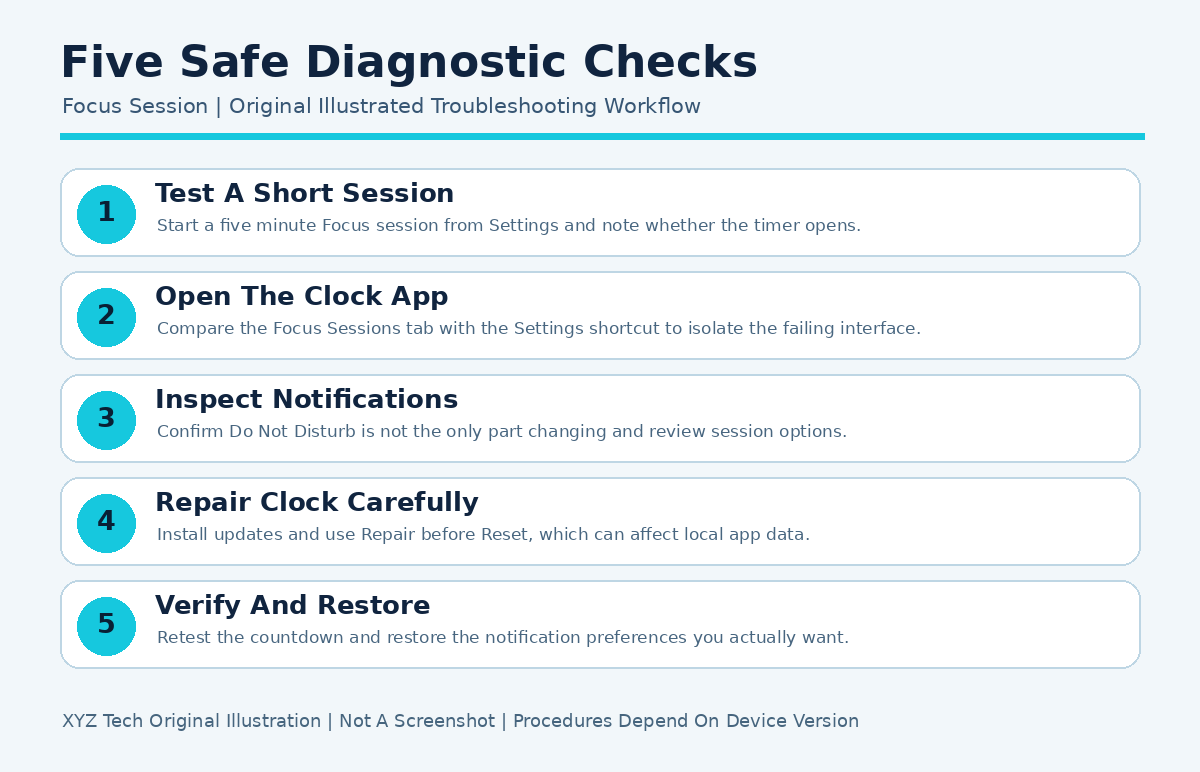
Five Step Verification Checklist
- Test A Short Session: Start a five minute Focus session from Settings and note whether the timer opens.
- Open The Clock App: Compare the Focus Sessions tab with the Settings shortcut to isolate the failing interface.
- Inspect Notifications: Confirm Do Not Disturb is not the only part changing and review session options.
- Repair Clock Carefully: Install updates and use Repair before Reset, which can affect local app data.
- Verify And Restore: Retest the countdown and restore the notification preferences you actually want.
Frequently Asked Questions
Why Does Clicking Start Focus Session Do Nothing?
The Clock app may not launch correctly, a Windows update could be pending or a managed policy may restrict an integration. Test the session in Clock itself and use supported app Repair before Reset.
Does Do Not Disturb Mean Focus Is Running?
No, Do Not Disturb controls notification presentation. A Focus session uses a timer and may activate Do Not Disturb automatically, but quiet mode on its own is not proof of an active timer.
Can I Start Focus Without Spotify?
Yes, music integration is optional where available. Test the countdown without connecting a music account so that an optional service cannot confuse the diagnosis.
Will Repair Delete My Clock Alarms?
Repair is designed as a less disruptive app-fix option. Reset can remove local app data, so document important alarms and preferences before escalating.
Why Does Focus Stop When My Laptop Sleeps?
Sleep can suspend app activity or alter what is visible after resume. Test while the PC remains awake before changing power settings.
Can Microsoft To Do Problems Prevent A Timer?
An integration fault may affect tasks while the timer still works. Test a basic session without selecting a synchronized task to isolate the components.
Why Are Taskbar Badges Still Visible?
Focus options and Windows version determine badge behavior. Check the actual session timer and selected preferences rather than relying on one taskbar icon.
Should I Reinstall Windows To Fix Focus?
No, a single Clock problem does not justify reinstalling Windows. Begin with short tests, updates and supported app repair.
Can I Use Focus On A Work Laptop?
Possibly, but app installation, notification and account settings may be governed by an administrator. Use approved controls rather than bypassing policy.
How Do I Know Focus Is Fixed?
Start a brief session from the normal interface, watch it complete and confirm notification settings return to the intended behavior.
Official Research Sources
These vendor pages are used for documented feature behavior and safe remedies. Some menus and policies vary by device, Windows version or Firefox release.