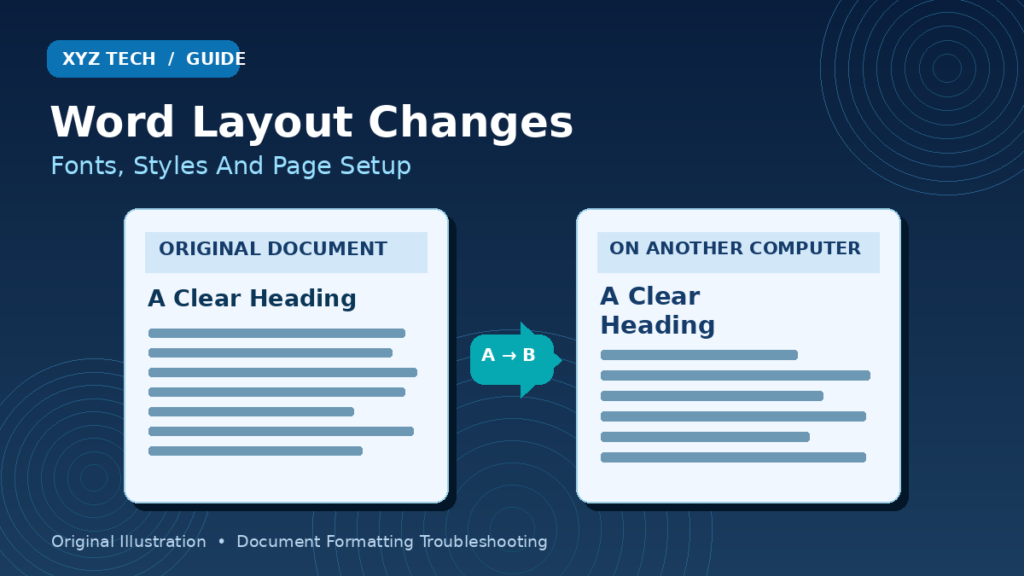

When a Word document changes formatting on another computer, first check that both people opened the same version. Compare installed fonts, desktop Word versus Word for the web, page size, margins and paragraph styles. Missing fonts can make text wrap differently. Use permitted font embedding or a broadly available typeface for editable sharing, and export a verified PDF when preserving appearance matters more than editing.
A report that looks perfect on one laptop can gain extra pages, move images and change table widths when opened elsewhere. The safest fix is not to stretch or shrink everything until the page count matches. Instead, isolate the source of the difference and preserve the original file. This guide explains the checks in order of usefulness, using Microsoft documentation and practical reproducible tests.
Identify What Actually Changed
Start with a comparison rather than immediately editing the document. Open the same saved DOCX file on both computers if possible. Record whether text uses a different font, whether line breaks move, whether a table grows, or whether page numbers and headers are misplaced. These are related but distinct symptoms. A document that looks different in Word for the web may be undergoing a different rendering process from one opened in desktop Word.
Check that you are comparing the same file version. A shared folder can contain multiple copies named final, revised or updated. Compare file size, modified date and a recognizable sentence near the end. If the text itself differs, investigate document version history before changing formatting. If the words match but the line and page breaks differ, continue with fonts, styles, page setup and display checks. The goal is to find the cause with minimal edits.
Make A Safe Working Copy First
Before changing anything, save a separate working copy using a descriptive name such as Report-layout-test.docx. Keep the original document untouched, especially if it contains tracked changes, signatures, citations or approved wording. A formatting experiment can alter page numbers, cross-references or table widths even when no text is intentionally deleted. Review the final document after every significant change.
If the file lives in OneDrive or SharePoint, confirm that version history and synchronization have finished. A cloud sync indicator is not proof that every revision is preserved indefinitely. For important documents, retain an independent copy in an approved location. The cloud storage versus backup guide explains why synchronization should not be mistaken for a separate recovery copy. Avoid testing corrections in the only available version.
Check Whether A Font Is Missing
A missing font is a common reason the same Word document reflows between computers. Different fonts have different character widths, line heights and glyph shapes. When Word substitutes a font that is installed locally, lines can wrap earlier or later, pushing a heading to another page and affecting tables or page counts. Microsoft explains that a custom font installed on one computer may not exist on another.
Select a paragraph that looks wrong and inspect the font named in the Home tab on both machines. Compare the installed font families and the specific variant used, including bold or italic weights. A font name displayed in the document is not by itself proof that the matching font files are installed. For background, see Microsoft’s font installation guidance. Do not download random font archives to imitate another computer.
Understand Why Font Substitution Changes Pages
Imagine a ten-page report using a narrow body font on the original computer. On another machine, Word may substitute a slightly wider face. Every line can hold fewer characters, so each paragraph needs more lines and later content moves down. Page breaks in a long report can shift substantially even though the wording did not change. That is why manually deleting spaces or shrinking margins can hide the symptom without fixing the underlying cause.
Compare a short sample paragraph set to the original size and weight. If the substitute font produces different line lengths, choose a font that can be legitimately installed on both computers or use an approved font-sharing approach. Do not alter dozens of individual paragraph settings until you have assessed the font situation. Microsoft’s font substitution explanation is a useful reference when a file appears correct on one system and different on another.
Use Fonts That Recipients Can Access
The simplest strategy for a document intended to remain editable on multiple computers is to use fonts available across the required systems and Office versions. Confirm availability with the recipient instead of assuming every machine has identical fonts. Company fonts, subscription fonts and custom typefaces may have licensing or installation constraints. A document can look correct on your laptop but display differently on a colleague’s machine because the colleague never received the font files.
If your organization requires branded fonts, ask IT or the brand owner how those fonts should be distributed. Never share commercial font files unless the license allows it. A fallback font can be an intentional design choice, but select one and test the resulting document rather than relying on automatic substitution. For a final report that should not be edited, a PDF is often a better delivery format. A Word file and a PDF serve different purposes.
Check Whether Font Embedding Is Available
Desktop versions of Word may allow fonts to be embedded in a document under File, Options, Save on Windows. Availability depends on the Office version and font embedding permissions. Embedding can help recipients preserve the intended appearance, but it does not override font licensing restrictions and it can increase file size. Some fonts cannot be embedded, or may impose restrictions on editing.
Microsoft’s font embedding guidance distinguishes embedding only used characters from embedding the full font for recipients who need to edit the document. When permitted, embedding all characters is more suitable for collaborative editing than a small subset. Test the actual saved file on the receiving computer. Do not claim embedding has succeeded solely because a checkbox was selected. If the recipient uses a different app, verify whether it honors embedded fonts.
Choose The Right Font Embedding Options
The option to embed only characters used in a document can reduce file size, but it may limit what a recipient can type later with that font. If colleagues need to edit the document, embedding a fuller character set, where licensing allows, can be more appropriate. Options to avoid embedding common system fonts exist to keep files smaller, but that assumes recipients have those common fonts available.
Save the working copy after changing font options, close and reopen it, then test on a second machine or with a trusted collaborator. A bigger DOCX is not automatically more portable if its target software has different support. Microsoft documents the tradeoff in its Word file size guidance. Record which font and embedding method were used, especially for templates distributed across a team.
Compare Desktop Word And Word For The Web
Word desktop and Word for the web can display complex documents differently. Features available for editing and rendering may vary between environments. Confirm which application opened the file on each computer, and note whether the comparison is in a browser, desktop application or mobile view. A browser zoom difference can also make pages look differently sized without changing the underlying file.
Test the document in the same Word version and view where practical. Microsoft describes differences between Word in a browser and desktop Word. Do not repeatedly resave a complex file in multiple programs to chase an appearance change. First determine whether the issue is only visual in the editor or also present in an exported PDF. That distinction helps establish whether you are looking at a rendering difference or document-level formatting.
Switch To Print Layout For Comparison
Word offers different views for reading and editing. Compare the document in Print Layout when the concern is pagination, margins, headers, footers or printed output. Other views may optimize content for screen reading rather than reflecting the final printed pages. A document can appear continuous in one view and paginated in another without its text structure changing.
Use the View tab and select Print Layout where available, then compare the same page and heading on both computers. Microsoft explains the purposes of Word’s viewing modes. Avoid changing paragraph spacing based only on how a narrow browser window displays content. If the final PDF matches across devices while the editing view differs, you may not need to redesign the document at all.
Check Page Size And Orientation
Open the Layout tab and inspect Size, Orientation and Margins. A report designed for US Letter paper may reflow when changed to A4, and landscape pages can look incorrect if a section has switched to portrait. Different page dimensions reduce or increase usable text width, shifting line breaks, tables and pictures. Compare the settings on both files before adjusting anything.
For a long document, remember that Word can store different page settings by section. Changing a global setting without checking the section breaks can affect pages that were intentionally different. Verify the first page, a middle page and the final page. If the file belongs to a regulated or institution-specific template, ask for the required paper size rather than using whichever printer default appears. Document the original values before making corrections.
Inspect Margins And Gutter Settings
Two files with the same paper size can still flow differently if their margins, binding gutter or mirrored-page configuration differs. Check Layout > Margins and any custom margin settings in the relevant section. A narrower text area creates more wrapping even when the font is identical. A book or booklet template can intentionally use mirrored margins, so symmetrical-looking margins are not always correct.
Do not shrink margins only to force the document back to an earlier page count. That may break printing requirements and leave headings unbalanced. Compare the approved template values first. If the file was created on another computer, ask for its page setup rather than guessing. When preparing a final print version, verify the target printer’s supported paper size separately from the document settings.
Understand Section Breaks And Their Effects
Word section breaks can control page orientation, header and footer content, page numbering and other layout settings for part of a document. A section break copied or deleted accidentally can make later pages behave differently. Show formatting marks when troubleshooting a specific boundary and look for the section break around the location where formatting changes.
Handle section breaks carefully in a working copy. Removing one can merge formatting rules in unexpected ways. If page numbers suddenly restart or continue incorrectly, consult our dedicated Word page numbering guide. Do not attempt to fix font substitution by deleting section breaks. The two problems can coexist, but they require different evidence and different corrections.
Compare Paragraph Styles Instead Of Manual Formatting
Word styles control a collection of settings, including font, size, spacing and sometimes other paragraph properties. If two documents define a style with the same name differently, copied content can appear to change when pasted into the destination. Select the affected paragraph and inspect its style assignment. Compare the style definition in the working copy with the intended template.
Microsoft’s styles and themes guidance explains why consistent styles make document-wide formatting easier to maintain. Avoid manually applying different font sizes to every heading. That can make the document look correct temporarily while creating inconsistent navigation and accessibility. Correct the underlying style in a working copy and review all paragraphs that use it before saving the final version.
Distinguish Document Themes From Styles
Themes define coordinated fonts and colors, while styles govern how particular document elements are formatted. A theme change can therefore affect the appearance of headings and body text even when the style names remain unchanged. Compare the theme in both versions and check whether the document was created using a custom organization template.
Use the Design tab and inspect the document’s theme, fonts and related settings on the version of Word you have. Microsoft explains how document themes work. Do not apply a new theme as a blind fix: it can change colors and fonts throughout the entire report. Restore the intended template first, then check whether the page wrapping returns to normal.
Review Paste Formatting Between Documents
Formatting can change when a paragraph is copied from one document to another, even if both files look similar at first. Word’s paste options can retain source formatting, merge formatting with the destination, or keep text only. If a team member assembled a report from several files, inconsistent paste choices can create patches of different fonts, spacing or heading behavior.
Select an affected paragraph and compare it with a nearby correctly formatted paragraph. Microsoft describes paste formatting choices in detail. When appropriate, apply the destination document’s approved styles rather than copying visual properties one line at a time. Never select the entire document and clear formatting without first preserving a backup, because that can remove intentional emphasis and structure.
Check Line Spacing And Paragraph Spacing
If font families match but pages still differ, inspect line spacing and the space before and after affected paragraphs. A small increase across many paragraphs can add several lines of height to a long document. Check whether the difference appears in one particular style or only in paragraphs inserted from another file.
Avoid changing spacing globally without comparing the underlying style. It is easy to make a page count look closer while breaking readability and required formatting. Use a short sample in the working copy, and compare a heading plus the next two body paragraphs. A change that fixes the sample may be worth applying to its intended style, but it still needs a whole-document review.
Investigate Tables And Their Width
Tables can create conspicuous layout differences. Text may wrap onto extra lines when a cell uses a different font or when the table width changes. Inspect the table’s properties, fixed widths and text wrapping, and look for manually inserted spaces that were used to simulate columns. A table that appears stable at one zoom level may still expand when Word measures the content differently.
Test one copy of the problematic table before changing every table in the report. Use real Word table columns and appropriate alignment rather than sequences of spaces. If a table is intended to fit a specific page width, compare that width with the available space after margins. Do not convert the entire document to PDF just to hide a table problem if the recipient still needs to edit the numbers.
Check Images Text Wrapping And Anchors
Pictures, shapes and text boxes can move when surrounding paragraphs reflow. An image set to a floating wrap style may be anchored to a paragraph, so font substitution can indirectly reposition it. Inspect its layout options and see whether it is inline with text or floating with a wrap setting. What looks like an image problem can begin with a paragraph change earlier on the page.
For a simple report, inline images can sometimes be easier to maintain than floating objects. However, switching every image to inline can damage a designed page layout. Change one affected object in the working copy and evaluate its interaction with captions, tables and nearby headings. Keep the original for comparison. Avoid dragging images into place repeatedly before correcting the text flow that moves them.
Review Headers Footers And Page Numbers
When body content moves to a different page, headers and footers can appear inconsistent even if their own formatting has not changed. Check the section containing the problem, any Different First Page option and whether Link to Previous is intentionally enabled. Compare the same section in the original and modified copy.
Do not delete all headers to fix a single page number. Headers and footers can contain field codes, document titles and required identifiers. If the change is specifically about numbering after a section break, follow the dedicated page number troubleshooting guide. The correct repair is usually narrower than rebuilding every section from scratch.
Check Compatibility Mode And File Format
Older Word files can open in Compatibility Mode, which may preserve behaviors from earlier versions. A file saved as DOC may not support the same layout and features as a modern DOCX document. Check the extension and whether Compatibility Mode appears in the title bar. Record the file’s origin before deciding to convert it.
Microsoft’s document conversion guidance explains that converting to a newer format can enable newer features, while Compatibility Mode helps preserve existing layout behavior. Never overwrite the only original when converting a complex legacy file. Save a new copy and inspect page breaks, tables, fields and special elements afterward. Conversion is not a universal fix for a font that remains unavailable.
Consider Printer And Print Preview Differences
A mismatch between two printers, printer drivers or paper settings can affect printing behavior. First distinguish a problem visible on screen from one that appears only in Print Preview or on paper. Check the selected printer, paper size, tray and scaling options. Compare the same output destination if you can, rather than judging the document after two different print workflows.
Microsoft documents that paper source settings can differ with printer drivers. Do not assume this explains every line-wrap discrepancy; fonts and page setup are often more direct causes. If a PDF generated on the original computer prints correctly from both machines, the difference may lie in the other computer’s Word or printer configuration.
Export A PDF When Appearance Matters More Than Editing
When the recipient only needs to read, approve or print the completed document, export a PDF from the verified source file. PDF is designed to preserve page appearance more consistently than an editable word-processing file, though embedded font availability and export settings still matter. Review the PDF before sending it rather than assuming that conversion always fixes broken layout.
Microsoft provides instructions for saving or converting Office documents to PDF. Keep the editable DOCX as well if colleagues need to revise the work. A PDF is not the same as a collaborative Word document and should not replace the original without agreement. If the PDF looks wrong, fix the Word source or export settings before distributing it.
Use A Controlled Cross Computer Comparison
Create a small test copy containing one heading, two paragraphs, a simple table and one image from the original file. Save it as DOCX, open it on the second computer and compare fonts, spacing and page setup. If the sample changes, the cause may be easier to isolate than in a hundred-page report. If the sample is stable but the complete document changes, investigate section-specific formatting, objects and templates.
Make one change at a time and record the result. For example, switch only the sample’s font to a mutually available font and reopen it. If wrapping now matches, you have stronger evidence for font substitution. If it does not, check page dimensions and styles next. Keep the test file free of confidential information before asking outside support to inspect it.
Prepare A Document For Reliable Sharing
Before sending a formal report, standardize approved styles, confirm font availability or permissible embedding, verify page size and margins, and inspect key tables and image anchors. Ask whether the recipient needs an editable file, a reference PDF or both. Export and review the final PDF when appearance is critical.
Include a brief note about fonts or the required software if the document uses special design elements. Do not send proprietary font installers without authorization. If several colleagues collaborate on one file, use a consistent template and agreed application workflow. For important deliverables, maintain a version history and independent backup. A reliable handoff is a combination of file compatibility, version control and a clear expectation of how the document will be used.
Know When The Problem Needs Further Support
Escalate if the same DOCX still shows different results after you verify identical fonts, similar Word versions, correct page setup and matching styles. Provide a redacted sample, screenshots of the same section in Print Layout, the Word versions and a description of which object changed. Note whether the exported PDF differs too.
Support can work more efficiently with a narrow, reproducible test than with a broad claim that Word breaks formatting. On managed computers, ask IT to assess font deployment, templates and approved Office versions. Do not disable security software or replace system fonts to chase visual differences. The objective is a document that remains accurate and usable without introducing new compatibility or licensing problems.
Quick Comparison Table
| What Changes | Most Useful First Check | Safer Next Action |
|---|---|---|
| Text Wraps Differently | Compare Installed Fonts | Use Approved Common Or Embedded Fonts |
| Every Page Is A Different Length | Compare Paper Size And Margins | Restore Intended Page Setup |
| Only Headings Look Different | Compare Styles And Themes | Restore Correct Template Definitions |
| Images Move Between Pages | Inspect Text Wrap And Anchors | Fix Underlying Paragraph Reflow |
| Changes Only In Browser | Compare Word Views And Versions | Verify With Desktop Word Or PDF |
| Print Output Is Different | Check Printer And Paper Settings | Compare Verified PDF Output |
Share Ready Checklist
- Preserve the approved original and work in a named copy.
- Confirm the recipient’s Word application, version and available fonts.
- Review styles, page setup, section boundaries, tables and image wrapping.
- Use permitted font embedding when editable portability requires it, and test on another computer.
- Export and review a PDF for fixed-layout reading or printing, while retaining the editable source when needed.
Do not sacrifice document accuracy to match an arbitrary page count. A consistent approved layout matters more than cosmetic patching.
Frequently Asked Questions
Why Does My Word Document Look Different On Another Computer?
Often a font, Word version, view mode, style definition or page setting differs. Confirm you opened the same DOCX file, then compare the affected paragraph’s font and the document’s page size. A substitute font can change line wrapping and move content to another page.
How Do I Stop Word From Replacing My Font?
Use a font available to the recipient or, when the desktop Word version and font license permit it, consider font embedding. Embedding is not always supported or allowed, so test the saved file on the other device. Do not download typefaces from unknown sites.
Should I Send A DOCX Or A PDF?
Send a DOCX when recipients must edit the document, and a verified PDF when the main goal is a stable reading or print layout. Many workflows benefit from both formats. Review the PDF before sending because conversion cannot repair an already incorrect source layout.
Can Paper Size Change Page Breaks?
Yes, page size and margins determine the width and height available to text. A document created for US Letter can reflow on A4 if the setting changes. Check the Layout tab and any section-specific page settings before manually moving paragraphs.
Does Word For The Web Display Documents Exactly Like Desktop Word?
Not always. Word for the web and desktop Word differ in some editing and rendering features. Compare the same file in Print Layout where possible and inspect a PDF export when page fidelity is essential. Differences in browser zoom alone do not prove the file formatting changed.
Will Embedding Fonts Make The File Larger?
It can, because font data may be stored with the document. Embedding only the characters used may reduce size but can restrict later editing. Check the available Word settings, license permissions and needs of the recipient before choosing an option.
Why Are Tables Wider On My Colleague’s Computer?
Fonts, cell padding, page dimensions and table width settings can alter line wraps inside cells. Compare one affected table in a working copy. If the font is missing, address that first rather than manually shrinking every column.
What Is Compatibility Mode In Word?
Compatibility Mode helps Word preserve behavior for documents created in older file formats or versions. Converting a legacy document may enable newer features, but it can also affect layout. Preserve the original and inspect the new copy thoroughly if you convert it.
Can I Fix Formatting By Clearing All Styles?
That is usually too destructive. Clearing formatting can remove meaningful headings, emphasis and approved document structure. Identify the specific paragraph or style that differs and correct it in a copy. Then review all content affected by that style.
How Can I Check Whether The Problem Is The Printer?
Compare the document in Word, Print Preview and a PDF generated from the verified original. Check the selected printer, paper size, scaling and driver. If the PDF stays consistent but printed pages differ, focus on the print workflow rather than editing all document text.
Official Microsoft References
These official resources describe Word fonts, document styles, compatibility and portable document formats. Exact interface labels can vary across Word versions and operating systems.
- Microsoft: Custom Fonts And Office
- Microsoft: Benefits Of Embedding Custom Fonts
- Microsoft: Word File Size And Font Embedding
- Microsoft: Word Document Conversion And Compatibility Mode
- Microsoft: Save Or Convert Office Documents To PDF
- Microsoft: Control Formatting When Pasting In Word
- Microsoft: Differences Between Templates Themes And Styles
- Microsoft: Differences Between Word For The Web And Desktop Word
For a separate issue involving Word saving errors, see Word Not Responding When Saving. When a page-number sequence changes at a section break, use the section-break numbering guide. Keep formatting repairs narrow and reversible.


