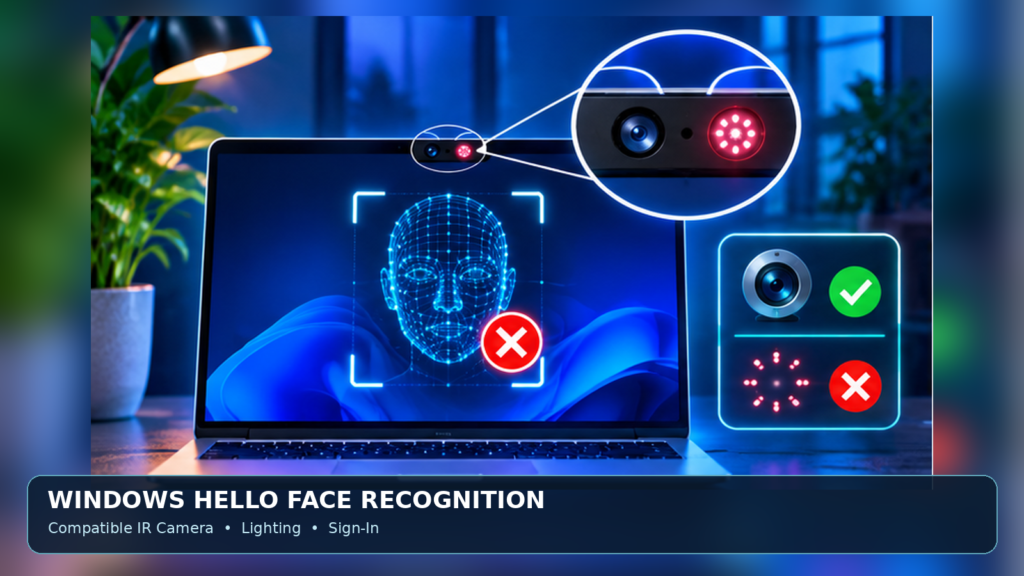

If Windows Hello face recognition is not working, confirm that your PC has a compatible infrared camera, check for a blocked lens or poor lighting, and use Settings > Accounts > Sign-in options to improve recognition when available. If Windows cannot find a compatible camera, investigate its device driver, hardware support or security policy. Keep your PIN available as a safe fallback.
This guide separates missing infrared hardware, inconsistent matching, app conflicts and organizational restrictions. It uses Microsoft’s supported guidance and avoids insecure biometric bypasses.
What Windows Hello Face Recognition Actually Needs
Windows Hello facial recognition is a sign-in method that checks a user with compatible biometric camera hardware. A normal webcam can work for video meetings but still be unsuitable for Windows Hello Face. The feature commonly uses an infrared camera or compatible external biometric camera, together with platform hardware and software support. Microsoft explains the requirements in its Windows Hello setup guidance.
The first question is whether facial recognition ever worked on this exact computer. If it never appeared in Sign-in options, check the manufacturer’s specifications before attempting driver repair. If it worked yesterday but fails now, focus on recent changes to lighting, appearance, camera access, updates, device management or drivers. These are different problems, and applying the wrong fix can waste time or disrupt a working account.
Choose The Correct Problem Before Fixing Anything
The message ‘We couldn’t find a camera compatible with Windows Hello Face’ points toward compatibility, detection or driver support. A recognition attempt that reaches the camera but says it cannot identify you is different: compatible hardware is likely available, but the biometric match or capture conditions are not succeeding. A feature disabled by an employer’s policy is a third case that cannot necessarily be changed by a local user.
Write down the exact wording of the message and whether a camera indicator lights. Note whether the failure occurs only after sleep, after Windows updates or whenever you wear glasses. A useful record distinguishes a hardware-detection failure from a recognition-quality issue and from an administrative restriction. Do not capture biometric enrollment screens or share account details with strangers.
Use Your Windows Hello PIN As A Safe Fallback
A failed face sign-in should not force you to risk your account. Select the supported Sign-in options control on the lock screen and use a PIN, password or another configured method. The availability and presentation of alternatives can differ by device, organization and current Windows version. The PIN is associated with the device’s security arrangement; it is not necessarily the same as the Microsoft Account password.
If the PIN option is missing too, follow our separate Windows 11 PIN Not Available guide instead of mixing two troubleshooting sequences. Avoid repeatedly entering guessed credentials or using account recovery links supplied in an unexpected email. Secure access to the account comes before changing camera drivers or removing enrollment data.
Check The Device For A Compatible Infrared Camera
Open the manufacturer’s specifications for the exact laptop or camera model, not merely the product family. Some laptops have multiple configurations, and a visually similar model may lack the IR camera required for face sign-in. Microsoft’s Hello troubleshooting guidance emphasizes checking camera compatibility. A standard camera app opening successfully is not proof of Hello facial-recognition hardware.
If you use an external webcam, verify that its vendor explicitly supports Windows Hello Face and that it is connected directly or through a fully compatible port and docking arrangement. Confirm hardware support before buying an accessory or installing a generic driver. A webcam’s megapixel count and video resolution do not establish that its biometric capabilities match Windows Hello requirements.
Video Calls May Work, But Face Sign-In May Not Be Supported
Check Manufacturer’s Hello Support And Correct Driver
Look For A Blocked Or Covered Camera
Modern laptops may have physical privacy shutters, dedicated camera keys or firmware-level camera controls. Check for a closed shutter, an obstruction over the IR sensor, or an external webcam that is pointed away from you. Some devices place the infrared emitter next to the visible webcam lens, and covering one component can affect recognition even while ordinary video calls still appear normal.
Inspect the area gently without scraping the lens or using a harsh cleaning solvent. Wipe the camera region with a suitable clean soft cloth, and use normal room lighting. Microsoft lists a clean and unobstructed camera among common recognition fixes. If a privacy control is managed by your employer, do not try to bypass it. Ask the authorized administrator to confirm whether the biometric camera is intentionally disabled.
Improve Lighting And Face Positioning
Even with infrared hardware, recognition is not immune to lighting, camera angle and positioning. Sit at a comfortable normal distance with your face visible and oriented toward the camera. Very bright backlighting, glare on glasses, deep shadows or a camera positioned far below eye level may interfere with the capture. Microsoft notes that some difficult lighting or appearance changes can affect recognition confidence.
Test in two ordinary lighting conditions rather than repeatedly forcing recognition in a single poor setup. If an external camera is used, keep it steady. Do not assume one specific distance or brightness value works for every model, because optics and software vary. A consistent improvement when you face the sensor squarely suggests a capture-quality issue rather than a missing camera driver.
Use Improve Recognition When The Option Appears
If the camera is detected but frequently fails to recognize you, open Settings > Accounts > Sign-in options and inspect Facial recognition (Windows Hello). On supported versions that offer Improve recognition, follow the on-screen prompts while looking naturally toward the camera. Microsoft recommends this after changes such as glasses, facial appearance or difficult recognition conditions.
Improving recognition can refine the existing enrollment rather than replacing unrelated account settings. The control may not appear on every configuration or managed device, so follow the version-specific interface you actually see. Afterward lock the screen and test once or twice under typical conditions. Do not interpret a successful test as a guarantee of instant recognition in every future environment.
Check Glasses, Masks And Recent Appearance Changes
Windows Hello relies on biometric signals that can be affected by what the camera can see. Thick frames, reflective lenses, a mask or a recently changed appearance may alter the captured information. Modern systems attempt to accommodate normal variation, but an authentication system must also reject cases in which it is not sufficiently confident that the correct live person is present.
If you normally use glasses, follow the offered improvement workflow with the accessories you actually wear. Do not remove protective equipment against a workplace policy just to complete enrollment. If recognition remains inconsistent, use a configured alternative sign-in method and seek vendor advice rather than lowering security through untrusted biometric software.
Distinguish Regular Camera Problems From Windows Hello Failures
The Camera app can help determine whether a visible webcam is functioning, but Windows Hello may depend on an infrared component not exposed as a normal video source. If video calls also fail, investigate the general camera system. If ordinary video works but Hello reports no compatible camera, concentrate on the IR sensor, biometric driver, firmware and security requirements.
Microsoft’s camera troubleshooting article covers app conflicts, device detection and relevant settings. Our device-driver explanation also clarifies why hardware needs correctly matched software. Do not use a successful selfie-camera photo as proof that the Windows Hello problem must be in the user profile.
Understand Camera Privacy Settings Correctly
Windows exposes camera permissions for applications under Settings > Privacy & security > Camera. These permissions can explain why a conferencing or photography app cannot use a camera. They do not always govern Windows Hello sign-in in the same way. Microsoft’s camera and privacy documentation states that Windows Hello can use the camera to sign in even when ordinary app camera access is turned off.
Therefore, switching every privacy permission on is not a reliable universal Hello fix. Review the device and driver first, and preserve the permissions you intentionally chose. If an organization controls camera use, contact IT. The distinction matters because broad permission changes can increase access for unrelated applications without solving the actual biometric hardware problem.
Inspect Camera And Biometric Devices In Device Manager
After signing in through a safe fallback, open Device Manager using the Start menu and inspect categories such as Cameras, Imaging devices and Biometric devices as applicable. An IR camera, biometric sensor or vendor component may appear under different names. If a device shows an error icon, note the name and any stated code. Do not uninstall a working device simply because a troubleshooting article suggests doing so.
Use the PC manufacturer’s support page to verify the expected device model and software packages. If a device is disabled and you have permission to enable it, follow the supported interface; on managed hardware, check with IT. Compare the result after a normal restart. An absent entry could reflect disabled hardware, missing support or a driver problem, so it needs context rather than an automatic conclusion.
Update Camera Drivers From Trusted Sources
Check Windows Update and the computer maker’s official support page for camera, biometric and chipset updates recommended for your exact model. Some hardware depends on firmware and manufacturer-specific camera components. Microsoft explains in its camera guidance that replacing a vendor-specific camera driver with a generic one can affect features such as Windows Hello.
Create a backup or system recovery point where suitable before substantial driver work, especially on a business computer. Avoid driver-download websites that bundle unknown utilities or claim to install every missing driver automatically. Our Windows 11 Device Driver Guide covers reliable sources and version matching. After any change, test recognition rather than assuming installation success means biometric support returned.
Check Windows Updates Without Forcing Unsafe Changes
A Windows security or feature update can coincide with a change to camera behavior, but timing alone does not prove the update caused the problem. Open Settings > Windows Update, review update history, install suitable supported fixes and restart when the device is ready. Keep notes about exactly which driver or firmware version changed if a problem began immediately afterward.
If a failure appeared after an optional driver update, look for documented recovery or rollback options through the device manufacturer or Microsoft. Do not download older unverified firmware or disable core security to force compatibility. Our Windows Update Stuck Guide handles update installation problems separately from biometric sign-in.
Check Whether Another App Is Holding The Camera
Some camera drivers or device modes can prevent simultaneous access to particular camera functions. A video-conferencing app, virtual-camera tool or a camera configured for a specific managed mode may affect availability. Microsoft’s Windows 11 Camera Settings documentation discusses infrared cameras and situations in which camera access can conflict.
Close applications that are using the camera, then test from the lock screen. Reboot if the camera remains busy after a program closes. Do not delete security software or enterprise camera utilities without checking the vendor’s directions. If ordinary camera use succeeds but Hello does not, inspect the exact Windows Hello error instead of treating all camera issues as one fault.
Understand External Cameras And Enhanced Sign-In Security
Some Windows 11 PCs have Enhanced sign-in security, which can affect support for third-party biometric readers or cameras. Microsoft’s third-party biometric device guidance explains that an external camera may not work for face sign-in under certain enhanced security configurations, even when it can capture normal video.
The security feature is designed to protect authentication. Do not switch it off solely to make an uncertified external camera usable without understanding the consequences and any organization policy. Prefer compatible supported hardware or the built-in sensor when available. If the machine belongs to an employer, IT should evaluate permitted biometric devices and the correct sign-in policy.
Review Sign-In Options And Enrollment Status
Open Settings > Accounts > Sign-in options and expand Facial recognition (Windows Hello). Confirm whether Windows reports that the feature is set up, unavailable or in need of attention. If it is configured but repeatedly rejects you, try Improve recognition where supported. If the system instead says no compatible device exists, solve detection or hardware capability before trying to reenroll.
If your facial enrollment must be removed and set up again, follow the official interface using a configured alternative sign-in method. Do not remove the PIN or recovery options before confirming you can still access the account. Be particularly cautious on devices that require organizational enrollment or security keys. A face biometric template and your Microsoft Account password are different security elements.
Do Not Delete Biometric Databases Manually
Many older internet guides recommend taking ownership of Windows biometric data directories or deleting system files to reset recognition. That is a poor starting point because file permissions and operating-system security features protect the sign-in system. An unsupported change could disrupt more than one enrollment or create an unnecessary account recovery problem.
Use the documented Sign-in options controls or the computer manufacturer’s supported recovery procedure instead. If a corporate policy prevents reenrollment, contact the organization rather than editing system files. Administrative access does not make an unverified biometric database procedure safe, and troubleshooting should preserve the integrity of authentication wherever possible.
What If The Feature Says It Is Unavailable
If Settings states that Windows Hello Face is currently unavailable, inspect hardware support, Device Manager, Windows Update, firmware and organizational restrictions. Restart the computer after confirming that a compatible IR camera is present and physically available. In some cases an external biometric device needs its manufacturer’s supported driver or a compatible USB connection.
Do not buy a new webcam before you have checked the exact Windows Hello compatibility statement. Some device families omit the IR camera in their lowest-cost configurations. Microsoft Surface documentation notes such model differences, which illustrates why the product name by itself can be misleading. If a compatible sensor is not included, the correct solution may be a different authentication method, not a software reset.
Windows Hello On A Managed Work Or School Device
Work and school administrators can enforce sign-in policies that affect biometric enrollment and camera availability. The same setting that is user-controlled on a personal PC may be disabled or managed by an organization. Do not attempt to bypass device management, certificate restrictions or biometric enrollment rules. Those controls may be tied to security compliance and account access.
Collect the Windows version, computer model, affected username category, exact error and whether a PIN works. Share those facts with IT, but not your PIN, recovery codes or personal face data. A concise support report helps distinguish a disabled policy from a camera fault and reduces the risk of an administrator rebuilding a functioning user account.
Test After Sleep And Docking Changes
If recognition works after a restart but fails after sleep or when connected through a dock, repeat a controlled comparison. Test with the built-in IR camera alone, then with the external camera if one is supported. Note whether a docking cable, external display or lid position physically covers or disconnects the camera. A working laptop when undocked points toward a different investigation than a consistently unavailable internal sensor.
Record the difference rather than making several simultaneous USB, power and driver changes. Review manufacturer firmware updates for the model and dock. A USB-C connector does not imply that every dock supports every attached feature. Our USB-C Port Troubleshooting Guide explains hardware capability and cable checks that are relevant when external accessories fail.
Check Whether A Recent App Or Driver Is Incompatible
If Hello recognition stopped immediately after installing a virtual-camera program, security utility or manufacturer camera software, record the installation date and version. Reboot and check whether the program still holds the camera. Use supported update or uninstall controls only for software you understand, ideally after confirming the issue is reproducible.
Do not turn off antimalware protection or change system services merely to make face sign-in work. A camera utility can affect ordinary video processing without supporting the biometric infrared path. Consult the vendor’s release notes and compare safe observations before deciding that one application is responsible.
When Restarting Is Helpful And When It Is Not
A normal restart can release a camera that is stuck in use, reload drivers and complete pending Windows updates. It is a reasonable non-destructive step after reviewing the symptom and saving open work. It cannot add a missing infrared camera to a computer or override an organization policy, and a temporarily successful login does not identify why the problem occurred.
If the issue returns after each restart, keep a timeline of sleep, docking, driver and update events. Repeatedly restarting without recording what changed may hide a reproducible hardware or firmware problem. Avoid factory resetting a computer solely because biometric sign-in is unreliable when the PIN still works and the manufacturer has not recommended a larger recovery process.
A Practical Troubleshooting Decision Table
Use a symptom-to-action map to avoid unnecessary fixes. A missing compatible camera should trigger a hardware and driver review; intermittent recognition should trigger lighting and enrollment checks; a camera busy error calls for an application conflict check; and a message about account policy should lead to your device administrator. This is much safer than treating all four cases as corrupted Windows installations.
After each change, lock the device and test once under normal conditions. Use a fallback login to preserve access if the test fails. Record whether the camera indicator activates, whether the biometric attempt begins and what error Windows displays. This evidence makes the next step measurable rather than speculative.
| Observed Problem | Likely Starting Point | Do Not Assume |
|---|---|---|
| No Compatible Camera | Hardware, Drivers, Firmware And Policy | A Regular Webcam Is Enough |
| Face Not Recognized | Lighting, Lens, Glasses, Improve Recognition | Windows Must Be Reset |
| Works Only After Restart | Camera Conflict, Sleep And Driver State | Permanent Hardware Failure |
| External Camera Rejected | Enhanced Sign-In Security Compatibility | Security Must Be Disabled |
| Managed Device | Organization Sign-In Policy | Local Changes Are Authorized |
How To Check Success Without Weakening Security
A successful fix allows the supported face sign-in attempt to complete reliably under everyday conditions while leaving the PIN or another authorized fallback available. Test after one normal restart and again after the routine sleep or docking situation that originally triggered the issue. Check that other users’ accounts and camera applications still work as expected.
Do not disable Secure Boot, remove device encryption, weaken sign-in policy or install an unverified biometric bypass utility to claim success. Authentication is a security function, so the best repair preserves protection and account recovery. If a suitable IR camera is not available, using a secure supported PIN is a legitimate outcome.
When To Contact The Manufacturer Or Microsoft
If Device Manager shows a recurring biometric device error, the IR camera is physically damaged, or the approved driver package fails to detect supported hardware, contact the PC or camera manufacturer’s official support. Provide the model, Windows build, exact message and steps already tested. For a managed device, use the organization’s help desk before the retail vendor.
Do not send screenshots containing personal sign-in data or share PINs and recovery information with unsolicited support callers. A legitimate technician may request diagnostic logs, but you can ask why each item is needed. Escalation is appropriate when hardware or firmware capability is uncertain, because no universal software command can repair a physically failed infrared sensor.
A Maintenance Checklist For Reliable Face Sign-In
Keep the camera clean and uncovered, use official supported drivers, apply ordinary Windows security updates and maintain at least one secure alternative sign-in method. After a significant appearance or eyewear change, use Improve recognition if your Windows version offers it. If you use an external Windows Hello camera, confirm that its connection and security support remain intact after docking changes.
Before changing enrollment or drivers, save important work and preserve account recovery options. If the problem reappears, follow the same evidence-driven sequence instead of collecting random tweaks. Windows Hello facial recognition is most useful when it remains both convenient and trustworthy, and a cautious troubleshooting process protects both goals.
Frequently Asked Questions
Does Any Webcam Support Windows Hello Face?
No. Windows Hello Face requires compatible biometric hardware, typically a supported infrared camera, not simply a webcam that works in video calls.
Why Does Windows Say It Cannot Find A Compatible Camera?
Possible explanations include unsupported hardware, a disabled or undetected infrared device, missing manufacturer drivers, firmware issues or a security policy.
Can I Log In If Face Recognition Stops Working?
Usually you can select another previously configured sign-in method, such as a Windows Hello PIN, as long as your device and account permit it.
How Do I Improve Windows Hello Face Recognition?
Open Settings > Accounts > Sign-in options and use Improve recognition under Facial recognition when available on your supported device.
Can Glasses Cause Windows Hello Recognition Problems?
Some lenses, glare and changes to appearance can affect matching. Improve recognition and normal positioning may help, but results depend on the sensor.
Will Turning On Camera App Permissions Fix Windows Hello?
Not necessarily. Microsoft’s guidance says Windows Hello can access the camera for sign-in even when normal app camera access is disabled.
Should I Install A Generic Webcam Driver?
Not automatically. Manufacturer-specific infrared or biometric features can stop working when an unsuitable generic driver replaces the supported one.
Why Does Windows Hello Work After Restart But Not Sleep?
A driver, firmware, power-state or camera-conflict issue may be involved. Reproduce the pattern and check manufacturer support rather than assuming a single cause.
Can Enhanced Sign-In Security Affect An External Camera?
Yes. Microsoft documents restrictions affecting certain third-party biometric devices on PCs using Enhanced sign-in security.
Should I Delete Windows Biometric Data Files?
Avoid manual deletion. Use supported Sign-in options or your organization’s recovery procedure to prevent additional authentication problems.


