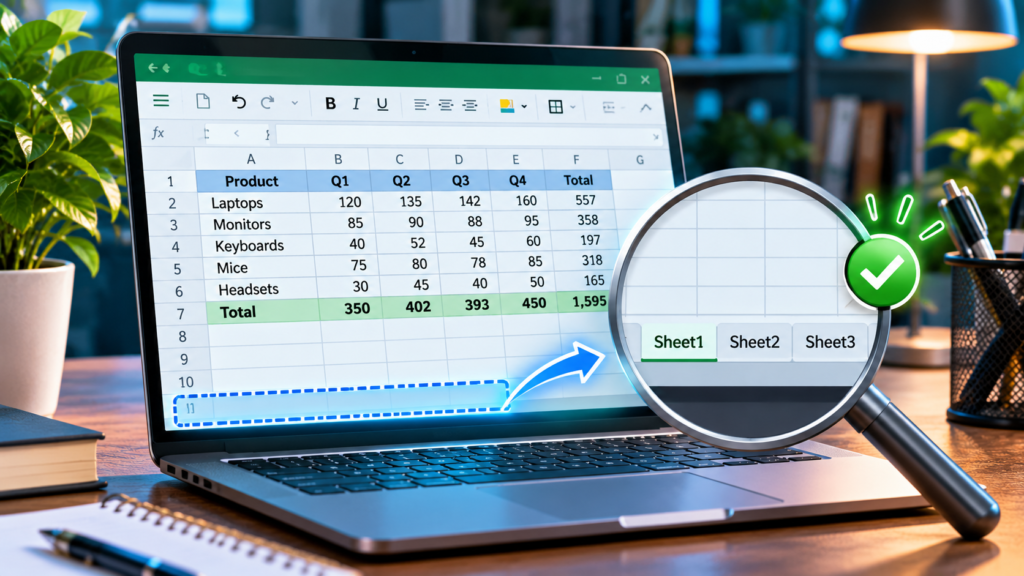

When Excel sheet tabs are missing, first open File > Options > Advanced in desktop Excel for Windows and turn on Show sheet tabs for the current workbook. If only one sheet is absent, use Home > Format > Hide & Unhide > Unhide Sheet. Check the bottom scroll bar, workbook protection, and file format before attempting recovery.
These Microsoft-documented fixes address missing worksheet labels without resorting to untrusted macros or unnecessary file restoration. The guide distinguishes display problems from actual data loss on Windows, Mac and Excel for the web.
Identify Which Excel Tabs Have Disappeared
Excel workbooks contain individual worksheets, usually represented by named tabs along the bottom of the application. When those labels are missing, it is easy to assume the content was deleted. In reality, there are several different possibilities. The workbook may have disabled all tab labels, the scroll bar may crowd them out, or one particular worksheet may be hidden. Even an entire workbook window can be hidden without deleting the underlying file. The correct repair depends on which symptom you have, so look carefully at what remains on screen.
Begin by checking whether the worksheet grid is still visible and whether you can work with the data currently displayed. If the grid is visible but there are no names along the bottom, start with Show sheet tabs. If you can see some tabs but not an expected worksheet, examine navigation and Unhide Sheet. If the entire workbook window seems absent, investigate View and Unhide. These distinctions protect your data because they prioritize ordinary display settings instead of unnecessary recovery procedures.
Protect The Workbook Before Changing Anything Important
Make a separate copy of an important spreadsheet before attempting changes that could affect its contents. Use a supported Save As or copy workflow, and confirm that the backup preserves the workbook format. For a file stored in OneDrive or SharePoint, verify that you have access to version history, but do not restore an older revision yet. Restoring a previous version can replace work completed after that version. A missing tab is usually not enough evidence to justify overwriting the current file.
Preserve the original filename and location in a note so you do not accidentally repair a similarly named copy. Avoid saving a multi-sheet workbook as CSV, because CSV does not preserve the complete Excel worksheet structure. If the file is valuable and you are worried about data loss, review our Excel Unsaved Workbook Recovery Guide for related recovery concerns, and keep a separate usable backup rather than relying on a single working file.
Fix 1: Enable Show Sheet Tabs In Excel For Windows
In a supported desktop edition of Excel for Windows, select File, then Options, then Advanced. Find Display options for this workbook and enable Show sheet tabs. Select OK and return to your spreadsheet. Microsoft’s Advanced Options Reference identifies this setting, and its Missing Worksheet Tabs Guidance lists it as a common cause. If several workbooks are open, make sure the setting applies to the intended one.
Do not change unrelated calculation, security, or display options while troubleshooting. The Show sheet tabs control changes the visibility of the navigation strip; it does not restore a deleted worksheet. If the checkbox was already selected and tabs are still invisible, move to the bottom-of-window layout checks. After a successful fix, close and reopen a safe copy to verify that the labels remain available rather than assuming the adjustment worked permanently.
Fix 2: Adjust The Bottom Scroll Bar And Window Width
Excel shares space along the bottom of a workbook window between sheet navigation and horizontal scrolling. If the horizontal scroll bar occupies too much room, the tab labels may appear cut off or disappear from the visible area. Microsoft specifically identifies the horizontal scroll bar as one reason worksheet tabs cannot be seen. Inspect the divider between the navigation area and scroll bar, and adjust it where the interface provides that control.
Maximizing the workbook can also help if it is squeezed into a small desktop window. Try restoring a normal single-window arrangement before changing other settings. Do not disable every scroll bar merely to show tab labels, because horizontal scrolling may be necessary for wide worksheets. If a few labels return after changing the available width, the sheets were likely present all along. That is different from the file actually losing a worksheet.
Fix 3: Navigate To A Sheet That Is Merely Out Of View
A workbook with many sheets cannot necessarily display every name in the tab strip at once. Look for the available tab navigation arrows or the sheet-list interface rather than assuming a sheet is hidden. Scroll through the names and select the one you need. Microsoft’s Select Worksheets Guide describes navigation among tabs and managing selected sheets.
Once the expected worksheet appears, there is normally no reason to run Unhide, repair the file, or restore a previous version. For large workbooks, clear descriptive names help people find sheets quickly, although renaming an established sheet should be done cautiously because automation and other users may rely on that name. Be particularly careful in shared business files where sheets may be linked through formulas or maintained in a specific order.
Fix 4: Unhide A Worksheet In Excel
If several tabs are visible but one expected sheet is absent, it may be ordinarily hidden. In supported desktop versions of Excel, open Home, choose Format in the Cells group, then Hide & Unhide, and finally Unhide Sheet. Select the worksheet you want from the list and confirm. You can also check whether right-clicking a visible tab offers an Unhide command. Microsoft documents these options in Hide Or Unhide Worksheets.
A hidden sheet remains stored inside the workbook, so this procedure should not change the actual data on that sheet. If the command is unavailable, the reason may be that no ordinary hidden sheet exists or that workbook structure protection restricts the action. Do not bypass a password or modify a shared document’s intended controls without permission. A confidential worksheet may have been hidden deliberately, and its owner should confirm whether making it visible is appropriate.
Fix 5: Restore A Hidden Workbook Window
An individual hidden worksheet and a hidden workbook window are not the same thing. If the Excel application is open but the expected workbook window has vanished, inspect the View tab and look for Unhide in the Window group. Microsoft describes this option in the same support article covering worksheet visibility. Select the correct workbook window when the Unhide command presents available choices.
If Unhide is disabled, the application may have no hidden workbook window at that moment. Check whether the workbook is minimized, on another monitor, or behind a different window. Disconnecting an external monitor can leave windows in surprising positions, but that does not imply the data is lost. First identify the window state and the title of the file you expected to see. Only consider file recovery if there is evidence the workbook itself is missing or damaged.
Fix 6: Find Sheet Tab Options In Excel For Mac
Excel for Mac uses different settings navigation from Excel for Windows. Microsoft’s official Excel Preferences Documentation describes a View section reached through Excel > Preferences that includes the option to show workbook sheet tabs. In a supported Mac release, open Excel’s preferences, locate View or Show in Workbook settings, and check that sheet tabs are enabled for the active workbook.
If a particular worksheet is missing rather than the whole strip, look for the supported Home > Format > Hide & Unhide controls or a context menu on an existing tab. Interface wording and placement can vary by Excel release, so do not follow Windows-only screenshots when using macOS. Restarting the application is rarely the first necessary action. Check the visible settings, confirm the correct workbook, and test whether the missing sheet can be found through ordinary navigation.
Fix 7: Locate Sheets In Excel For The Web
Excel for the web uses browser-based navigation, so you should not expect the desktop File > Options > Advanced menu. In supported web interfaces, find the sheet tabs at the bottom of the workbook and use available navigation or the All Sheets menu. Microsoft’s All Sheets Menu Guide explains how to select a sheet directly from the list.
To restore an ordinarily hidden sheet, right-click a visible sheet tab and use the Unhide command when offered. A small browser window or zoom level can reduce the area available for labels, but zoom does not restore a deleted sheet. If the web edition is missing an advanced control, consider opening an authorized copy in supported desktop Excel rather than assuming that the document itself is broken. Verify the source file and any collaboration restrictions first.
Fix 8: Understand Very Hidden Worksheets
A worksheet can be hidden by VBA with the xlSheetVeryHidden property. Microsoft notes that a Very Hidden sheet does not appear in Excel’s ordinary Unhide dialog. Repeatedly opening that dialog will therefore not reveal it. This is a different case from a sheet that someone hid using the normal Home menu, and it frequently occurs in automated business workbooks.
If you do not own the workbook, ask the developer or authorized owner whether the sheet should be visible. It might store supporting information that users are not intended to edit. Never download macros advertised as one-click solutions to unhide every sheet, particularly if they require disabling security warnings. An authorized maintainer can review the visibility state in a controlled environment and decide whether the change is appropriate.
Fix 9: Check Workbook Structure Protection
Excel workbook structure protection can prevent hiding, unhiding, inserting, deleting, renaming, or moving sheets. Microsoft’s Protect A Workbook documentation explains that these commands may become unavailable when workbook structure is protected. If Unhide is greyed out or several tab actions are disabled, consider protection before treating the installation as faulty.
Protection is not a reason to bypass someone else’s password. If you are authorized to change the workbook, use the proper credentials and procedure or contact its owner. If the visible tab strip is missing entirely, also inspect Show sheet tabs because that display setting and workbook protection solve different problems. Keep the distinction clear when explaining the issue to a colleague, as it can save unnecessary attempts to repair a healthy file.
Fix 10: Confirm The File Format And Correct Copy
Files with similar names can cause confusion. A workbook opened from email may differ from the file stored in Documents, a shared folder, or cloud storage. Check the document title, location, and file extension. In particular, comma-separated values files do not contain a collection of separate Excel worksheets. If you saved or received a CSV export, it cannot reveal multiple tabs that were never included in that format.
Microsoft’s File Format Compatibility Reference documents the kinds of features Excel may not transfer into simplified formats. Look for the original .xlsx or, where appropriate, .xlsm workbook. Do not recreate missing worksheets manually until you have confirmed that the correct source file is open. Our File System Explanation can help readers understand where different copies of a document may reside.
Fix 11: Restore Previous Versions With Care
If a worksheet truly disappeared following an accidental deletion or problematic save, previous versions can sometimes help. For files stored in OneDrive or SharePoint, review version history as described in Microsoft’s OneDrive Version History Guide. Examine the available revisions and select an appropriate earlier version only after assessing the effect on later work.
Restoring an older file can replace edits on other sheets made after that point. Save an independent copy of the current version before doing anything destructive, and coordinate with coworkers if the workbook is shared. For a file that only has hidden tabs, this operation is usually unnecessary. If you already use a personal backup system, our Cloud Backup Guide discusses version retention and the value of testing recovery rather than assuming historical copies will always exist.
Fix 12: Use Workbook Repair Only If Corruption Is Plausible
Actual workbook corruption is a more serious condition than tabs being hidden. It becomes more plausible if Excel displays error messages, cannot open the file normally, or reports that content needs repair. Microsoft’s Repair A Corrupted Workbook article describes supported recovery methods. Make a separate copy before repair and check what the program recovers, because a repaired document may lose some features.
Do not run random file-repair programs merely because the bottom navigation strip is absent. A damaged file can involve formulas, defined names, formatting, links, or macros, and a generic conversion may not preserve them. If the file is stored on a failing disk or unstable network path, follow Microsoft’s advice to work from a safer local copy when appropriate. Distinguish the goal of making a sheet tab visible from the separate goal of recovering damaged data.
A Visual Decision Tree For Missing Tabs
Start with the simplest visible symptom. If all tabs are absent but the grid is visible, inspect Show sheet tabs and the bottom scroll bar. If other tabs remain visible, look for navigation and Unhide Sheet. If no workbook window is present, check View > Unhide and confirm which document is open. If no ordinary unhide option works, consider workbook protection or a Very Hidden sheet.
The following diagram is an original instructional guide rather than an exact screenshot of Microsoft Excel. Its purpose is to organize the decisions, not to guarantee identical menus on every release. The path you choose should be based on what you can observe, and the process should stop as soon as the expected worksheets are available again. Unnecessary repairs create risk when a display fix already solves the problem.
How To Avoid Losing Worksheets In Future
Keep important spreadsheets in formats that preserve the complete workbook, such as .xlsx or .xlsm when their features are needed. Do not save a multiple-sheet workbook only as CSV. Use clear filenames and distinct storage locations so a temporary export is not confused with the authoritative copy. Keep backup and version-history arrangements suitable for the importance of the data.
Sheet hiding is not a confidentiality control. Anyone with sufficient access to the file may be able to inspect hidden content, and structure protection should not be confused with strong encryption. Use appropriate sharing permissions for sensitive workbooks. When collaborating, agree which sheets are intended to be visible and how changes should be reviewed. A small amount of organization reduces recurring missing-tab confusion.
Display Options And Scroll Bar
Navigation And Unhide Sheet
View And Unhide Window
When The Tabs Are Visible But Excel Is Frozen
Sometimes tabs are present but clicking them appears to have no effect because the application is busy or unresponsive. That is a different problem from missing labels. Observe whether Excel is calculating a large workbook, displaying a modal dialog, or failing to respond to other commands. Before forcing a restart, consider unsaved changes and whether the file is being synchronized.
Microsoft publishes separate Excel Not Responding Guidance. Follow its applicable troubleshooting sequence when the entire program is affected. If the issue repeatedly follows installation of an unknown add-in or utility, investigate the software through trusted channels rather than disabling important protections. Our Fake Software Download Button Guide helps identify risky download pages when looking for support tools.
How To Verify That The Fix Actually Worked
After the sheet tabs return, click several different tabs and confirm the expected worksheet data appears. If a particular sheet was hidden, check its contents without modifying formulas unnecessarily. Save a copy in the correct workbook format and reopen it to confirm that the visible tabs remain available. A fix that survives closing and reopening is stronger evidence than a momentary change in the interface.
If a missing sheet was recovered from version history, compare the restored data and recent edits carefully. A repaired workbook may not be identical to the file you expected. Check names, formulas, tables, and important figures before relying on it. For a shared file, another authorized collaborator should confirm that the correct tabs are visible and that no important permissions or structures were unexpectedly altered.
When To Contact The Workbook Owner Or Microsoft Support
If a sheet is Very Hidden, workbook structure is protected, or the file contains automation you do not understand, ask the authorized owner for assistance. For a managed Office installation, contact the organization’s support staff. Describe the actual Excel version, operating system, file format, and whether the issue occurs in every workbook or only one specific file.
An effective support report includes what you can still see, which safe menu paths you tried, and whether a new blank workbook displays tabs normally. Do not send sensitive sheets, passwords, or recovery information to public forums. A clear description helps distinguish a local display problem from workbook structure restrictions, an unavailable file, or an actual corruption issue.
Frequently Asked Questions
Why Are All My Excel Sheet Tabs Missing?
The Show sheet tabs option may be disabled, the bottom horizontal scroll bar may cover the tabs, or the workbook window may be hidden. Check these possibilities before assuming data was deleted.
Where Do I Turn On Show Sheet Tabs In Excel?
In supported Excel for Windows versions, use File > Options > Advanced > Display options for this workbook, then select Show sheet tabs and OK.
How Do I Unhide A Worksheet In Excel?
Use Home > Format > Hide & Unhide > Unhide Sheet and choose the worksheet, or right-click a visible tab and use Unhide when supported.
Why Is The Excel Unhide Option Greyed Out?
There may be no ordinary hidden sheets, workbook structure protection may restrict the command, or the expected sheet may be Very Hidden through VBA.
Does A Missing Tab Mean The Worksheet Was Deleted?
No. The sheet may still exist in the file but be outside the visible tab strip or hidden by a workbook setting.
How Do I Find Sheets In Excel For The Web?
Use the sheet navigation or All Sheets menu when available. A hidden sheet may be restored using the Unhide command on a visible tab.
How Do I Show Sheet Tabs In Excel For Mac?
Check Excel > Preferences and the documented View settings for workbook sheet tabs in supported Mac releases.
Can I Restore A Deleted Sheet From Version History?
Possibly, if an appropriate earlier workbook version exists. Save a copy first because restoring a previous version can overwrite later changes.
Why Does My CSV File Have Only One Sheet?
CSV is a flat text format and does not preserve Excel’s multi-worksheet structure. Locate the original .xlsx or other compatible workbook.
Should I Download A Macro To Fix Missing Tabs?
No. Start with built-in Excel controls and official Microsoft guidance. Unverified macros and repair programs can create unnecessary security and data risks.


