When Windows 11 ignores letters or makes you hold keys longer than usual, the keyboard may still be working correctly. Filter Keys is designed to assist with typing, but unintended activation or timing choices can interfere with ordinary input. This guide helps you isolate the problem without resetting Windows, removing drivers unnecessarily or losing accessibility settings.
How To Turn Off Filter Keys In Windows 11
Open Settings using the Start menu or Windows + I. Select Accessibility, scroll to Keyboard, and find Filter keys. If it is enabled and you do not intentionally use it, turn the main switch off. Open a plain text editor and type several ordinary words at your normal pace. If letters are accepted immediately and repeated letters behave as expected, the feature was probably contributing to the symptom. You can also reach the Accessibility page directly with Windows + U when the keyboard still accepts that shortcut.
The main switch controls the feature’s active state, but disabling it does not necessarily disable the shortcut that starts it. If Filter Keys repeatedly becomes active while gaming or working, inspect the separate shortcut preference described next. On a shared computer, ask the person who configured the accessibility settings before altering them. Filter Keys is a legitimate assistive feature, not unwanted software. Record the original configuration if you only intend to perform a temporary test.
Stop The Right Shift Eight-Second Shortcut
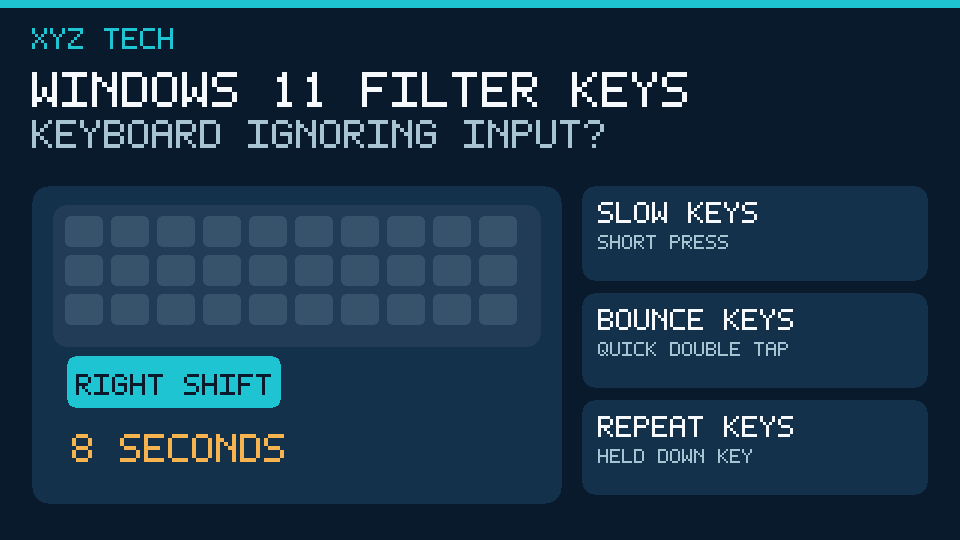
Microsoft documents holding the right Shift key for eight seconds as the Filter Keys shortcut. When the shortcut is permitted, holding that key can toggle the feature or present a confirmation depending on the Windows configuration. The shortcut uses the right Shift key, unlike the five-press Shift shortcut associated with Sticky Keys. If a warning appears while you are holding the key during a game, release it and read the dialog before selecting an option.
In Settings > Accessibility > Keyboard, expand Filter keys and look for Keyboard shortcut for Filter keys. Disable that shortcut if it causes unwanted activation. Check the main Filter keys switch separately and set it to your intended state. You can preserve the assistive feature while disabling its accidental activation route if that suits your needs. Test the ordinary task that previously triggered the warning, rather than holding the key for an extended period repeatedly. Menu labels can vary across supported Windows builds.
Identify Whether Brief Presses Are Being Ignored
Open Notepad or another local editor with a blank document. Type the word cat at a comfortable pace, then tap each letter lightly and separately. Compare that result with deliberate presses that you hold a little longer. Do not use passwords, private messages or a document that automatically submits input. The purpose is to establish whether the failure depends on how long a key is held, rather than the identity of the character.
If short presses disappear but longer presses are accepted, examine the Slow Keys setting first. If the same physical key fails regardless of press duration, the fault may instead involve the keyboard itself. If only one application misses letters, compare a second local editor before assuming the whole operating system is filtering input. A controlled comparison provides better evidence than randomly adjusting repeat rate, language preferences and drivers at the same time.
Understand Slow Keys And Acceptance Delay
Slow Keys is an option within Filter Keys that can require a key to remain pressed for a specified interval before Windows accepts it. It can help people who unintentionally touch adjacent keys while typing. When activated without the user’s knowledge, it can make an otherwise functioning keyboard feel unusually sluggish. The important distinction is that a key pressed briefly may be ignored entirely, not merely delayed and delivered later.
Expand the Filter Keys settings and look for the option relating to quick keystrokes or Slow Keys. If you rely on the feature, adjust the acceptance delay using the supported choices rather than disabling it indiscriminately. If you do not need it, turn that suboption off and repeat the brief-press test. Confirm that the main Filter Keys configuration matches your needs. The precise timing choices depend on the Windows version, so avoid relying on a universal numerical recommendation.
Diagnose Missing Double Letters With Bounce Keys
If you can type individual characters but words such as letter, coffee or book lose their repeated letters, inspect the behavior of successive presses of the same key. Bounce Keys can suppress a second press that occurs too soon after the first. This can be useful when unwanted repeated taps occur, but an unsuitable interval may also prevent intentional double letters from appearing. Compare two quick presses with two presses separated by a deliberate pause.
Look for the setting that ignores unintended keystrokes, sometimes labelled Bounce Keys. Adjust or disable it for a test according to your accessibility requirements. Use a harmless sample such as aa bb cc and compare the output before and after the change. Do not interpret every missing letter as a bounce-filter problem. A worn switch or unstable connection can also fail to register a second press. Test another keyboard when the effect consistently follows one physical key.
Diagnose Held Keys With Repeat Keys
Holding a letter or arrow key ordinarily produces a sequence of repeated input events after an initial delay. Repeat Keys settings can modify that behavior or suppress repeated input, depending on the available configuration. A user might first notice this when holding Backspace in a text editor or moving through a list with the arrow keys. It is distinct from tapping the same key twice, which involves two separate physical presses.
Use a blank editor and hold a harmless letter briefly. Record whether it appears once, begins repeating after an unexpected delay or repeats more slowly than intended. Inspect the repeated-keystroke controls within Filter Keys. If the feature is intentionally enabled, choose a comfortable supported delay and repeat interval. Do not use a key that can delete important information or perform a costly action for testing. If the issue persists with Filter Keys disabled, investigate ordinary keyboard repeat settings or application behavior.
Compare Filter Keys With Sticky Keys And Toggle Keys
Windows provides several keyboard accessibility tools with different purposes. Filter Keys governs the acceptance of short or repeated input. Sticky Keys helps a user perform keyboard combinations without holding every modifier simultaneously. Toggle Keys provides audible feedback for certain lock keys. A beep while typing does not establish which feature is active. Read the notification and check the individual controls in Accessibility > Keyboard.
For a dialog caused by pressing Shift repeatedly, consult the separate Sticky Keys troubleshooting guide. Do not turn off every accessibility feature when only one is causing unwanted behavior. If Ctrl seems to stay engaged, Sticky Keys or a physical modifier issue may be more relevant than Filter Keys. If ordinary letters are ignored, examine the timing controls. Keeping these mechanisms separate helps you retain useful accessibility settings while fixing the specific problem.
Use The On-Screen Keyboard When Physical Input Is Difficult
If the physical keyboard is not responding well enough to open Settings, use the mouse to reach Start > Settings > Accessibility > Keyboard and enable the On-Screen Keyboard. On systems where the shortcut remains usable, Windows + Ctrl + O can open it directly. The on-screen keys allow you to enter a short search or a test word with an appropriate pointing device. This is also useful when arranging temporary access while you diagnose a physical keyboard.
Compare the result with the external or built-in keyboard. If the on-screen keyboard works but a particular hardware keyboard does not, investigate that device and its connection. This is not a definitive test of all accessibility processing, because software-generated input can be handled differently. Do not type credentials on a shared recording or screen-sharing session. Keep an alternative input method available before changing drivers, Bluetooth pairing or other settings that could leave you unable to operate the computer.
Check The Sign-In Screen Without Changing Account Settings
A person may encounter slow or ignored keystrokes before reaching the desktop. Windows offers accessibility controls on the sign-in screen, which can help people access their own accounts. Inspect the available accessibility menu and use an authorized alternative input method where necessary. Do not repeatedly submit a password when you suspect characters are being omitted, because failed attempts can trigger account protections.
If the keyboard works after sign-in but not beforehand, record the difference. The sign-in environment and the signed-in user’s preferences are not necessarily identical. Avoid assuming that a change made in one environment has corrected the other. On a workplace computer, contact the administrator for approved access assistance. Do not edit system files or disable account security to regain keyboard access. Once signed in, inspect the user’s Filter Keys controls directly and test ordinary text before attempting further account changes.
Keep Accessibility Preferences On Shared Computers
Filter Keys can make typing practical for someone who experiences unwanted brief or repeated presses. A configuration that seems inconvenient to one person may be essential to another. Before modifying a shared or assisted computer, ask which settings the user relies on and note their chosen timing values. If the complaint is an accidental shortcut, disabling only the shortcut may be enough to solve it without altering the assistive behavior itself.
Make one adjustment at a time and test with the person who normally uses the keyboard, where appropriate. A generic recommended delay cannot account for individual input needs. On a managed device, controls may be unavailable because of policy. Ask the responsible administrator to review the setting rather than trying to bypass restrictions. Preserve the original configuration so a temporary diagnostic change can be reversed, and document the outcome in straightforward language.
Check A Known-Good External Keyboard
When specific keys fail even after confirming Filter Keys is off, connect a compatible known-good keyboard if available. Use the same editor, the same words and the same ordinary typing rhythm. Compare both brief presses and intentional holds. If the replacement works consistently while the original keyboard misses particular keys, the original device or its connection deserves attention. If both show similar timing-related behavior, examine the shared software environment.
This test does not guarantee a hardware diagnosis. Different keyboards may use distinct drivers, firmware or profiles. If safe and permitted, compare the suspect keyboard on a second compatible computer. The result is more informative when the same keys fail under the same test conditions. Our laptop keyboard keys not working guide covers faults isolated to particular keys. Avoid pulling laptop keycaps off or opening a keyboard during basic diagnostics.
Inspect Wired USB And Bluetooth Connections
A disconnected keyboard or intermittent wireless link can produce missing characters that resemble filtering. Check that a wired keyboard is securely attached and that its cable is undamaged. Try another compatible USB port without an unnecessary hub when practical. For a wireless keyboard, check its battery or charge and make sure the expected receiver or Bluetooth device is connected. A connection problem may affect several keys at random rather than consistently depending on press duration.
Compare the behavior before and after one connection change. If a Bluetooth keyboard is connected but cannot type at all, follow our Bluetooth keyboard troubleshooting guide. Do not remove all paired devices or reset network settings simply to test one keyboard. Before removing a pairing, make sure you know how to reconnect the device and retain another way to navigate. Filter Keys does not repair an unreliable physical connection.
Distinguish Keyboard Layout And Language Problems
If pressing a key produces the wrong character, the problem may be a keyboard layout mismatch rather than Filter Keys. For example, a punctuation key may produce a different symbol after switching languages. Check the active input language and layout using the supported Windows controls. Compare ordinary letters and symbols in a blank document. Filtering changes the timing or acceptance of input; it does not normally explain a consistent mapping from one character to a different character.
Our Windows 11 keyboard layout troubleshooting guide explains how to investigate the separate issue of incorrect characters. Avoid removing language packs or replacing keyboard drivers while testing a timing-related problem. A device can have both an incorrect layout and unwanted Filter Keys settings, so change only the setting that corresponds to the current symptom and retest. Keep a record of the original layout when more than one person uses the computer.
Compare Application-Specific Input Behavior
Some applications handle key holds, repeated inputs and shortcuts independently. A game may deliberately ignore repeated actions during an animation, while an editor may use its own command bindings. If a keyboard behaves normally in Notepad but fails in a particular game or remote session, reproduce the problem in that application and check its documented input controls. Do not assume that a system-wide accessibility setting is responsible merely because a game ignores one command.
If the behavior began after importing a profile, changing a key binding or installing a keyboard utility, examine that particular change. Test with the default supported application profile if appropriate, and restore the original after comparison. Keep accessibility tools that are necessary to operate the device. For shortcut failures rather than missing characters, see the Windows keyboard shortcut guide. Software-specific remedies should remain limited to the program involved.
Check Why Filter Keys Returns After Restart
If the setting seems to turn itself on again, determine when the change occurs. Check the main switch immediately after signing in, before opening a game or keyboard utility. Then open the usual programs one at a time and inspect the setting again if the symptom returns. If the feature changes after a particular action, that provides a useful clue. A warning that appears during prolonged right Shift use points toward the shortcut rather than a mysterious Windows failure.
Review whether the shortcut is still enabled and whether a shared user intentionally changed the setting. Windows Backup can include accessibility preferences among supported settings, so consider a recent account or device restoration when investigating a configuration change. This does not prove that backup synchronization is the cause. On managed devices, policy or administrator action may be involved. Avoid disabling every startup program or changing registry entries before collecting a reproducible observation.
Understand Ordinary Keyboard Repeat Settings
Windows also offers ordinary keyboard repeat controls separate from Filter Keys. If Filter Keys is off and held keys repeat at a rate you find uncomfortable, inspect the supported keyboard properties. Where available, the classic Keyboard Properties dialog provides repeat delay and repeat rate preferences. Use its built-in test area or an unsaved text document to find a comfortable setting. These controls primarily concern repeated output from a held key.
They do not automatically solve a failure involving every brief keypress, and they do not repair a physical switch. If you intentionally use Filter Keys, its timing options may affect the result of an ordinary repeat-rate test. Check the feature’s state first, then change one setting at a time. If the symptom only appears in a particular game or editor, investigate that application’s controls instead of repeatedly adjusting Windows-wide preferences. Restore any useful configuration after diagnosing the issue.
Review Updates And Drivers Only If Evidence Supports Them
When both accessibility and application settings appear correct but the keyboard remains unreliable, inspect recent changes through Windows Update history and the manufacturer’s support resources. Note the device model, operating system version and whether the problem started after a specific update. Use supported Windows Update or manufacturer channels for driver or firmware guidance. A normal restart after saving your work can also help rule out temporary application state.
Avoid uninstalling every keyboard or human interface device from Device Manager. Such changes can affect working input devices and may leave you without a way to reverse them. A driver replacement is not a necessary repair for an intentionally enabled Filter Keys switch. When a particular physical key fails across compatible computers, hardware support is usually a more relevant next step than repeated system changes. Check with workplace IT before modifying managed drivers or security settings.
| Symptom | Check First | Safe Test |
|---|---|---|
| Short press ignored | Slow Keys | Brief press versus deliberate hold |
| Double letter missing | Bounce Keys | Quick taps versus spaced taps |
| Held key does not repeat | Repeat Keys | Hold a harmless letter briefly |
| Right Shift warning | Filter Keys shortcut | Inspect shortcut switch |
| Only one physical key fails | Keyboard or connection | Compare known-good keyboard |
Choose The Next Action From The Test Results
Use the diagnostic table to match the observation with the relevant settings. Brief presses that disappear suggest Slow Keys. Missing consecutive identical letters suggest Bounce Keys. A held letter that fails to repeat suggests Repeat Keys or ordinary repeat preferences. A popup after holding the right Shift key suggests the shortcut. These observations indicate useful first checks rather than guaranteed causes. More than one condition can occur at the same time.
Once a reversible adjustment restores normal typing, stop and record what fixed the problem. If the setting is intentionally used, tune only the necessary timing option. If the same physical key remains unreliable across devices, contact the keyboard manufacturer. If a problem occurs only in one program, contact the application developer or check its documented bindings. A careful sequence prevents unnecessary repairs and protects the user’s ability to type. The examples in this article are diagnostic illustrations based on documented behavior, not claims that every hardware configuration has been physically tested.
Frequently Asked Questions
How Do I Turn Off Filter Keys In Windows 11?
Open Settings > Accessibility > Keyboard and turn Filter keys off if you do not need it. Expand its settings to disable the shortcut separately if accidental activation is the problem.
What Is The Shortcut For Filter Keys?
Holding the right Shift key for eight seconds can toggle Filter Keys when the shortcut is enabled. Inspect the setting directly to confirm its current state.
Why Does My Keyboard Ignore Short Presses?
Slow Keys may require a minimum press duration. Compare brief and longer presses in a blank document, then inspect the Filter Keys timing settings.
Why Can I Not Type Two Identical Letters Quickly?
Bounce Keys can suppress rapid consecutive presses of the same key. Compare deliberate separated presses and check the relevant timing option.
Are Sticky Keys And Filter Keys The Same?
No, Sticky Keys helps with combinations of modifier keys, while Filter Keys adjusts acceptance of brief or repeated keystrokes.
Can I Disable The Shortcut Without Losing Filter Keys?
Yes, where the separate shortcut control is available, you can turn it off and retain your preferred main feature setting.
Will Turning Off Filter Keys Delete My Files?
No, changing the accessibility preference does not delete your documents. Preserve any configuration that another user intentionally relies on.
Why Does Filter Keys Keep Turning On?
Check whether the right Shift shortcut remains enabled, whether the change follows a keyboard utility or whether a shared or managed configuration has been restored.
Should I Reinstall My Keyboard Driver First?
No, inspect accessibility settings and test another input device first. Use supported driver guidance only when the evidence suggests an input-device or software fault.
How Can I Navigate If My Physical Keyboard Is Unusable?
Use a working mouse or another supported input device to enable the On-Screen Keyboard from Accessibility settings. If necessary, arrange authorized support before changing drivers.
Official References
Use these manufacturer resources for supported Windows accessibility controls and shortcut behavior.