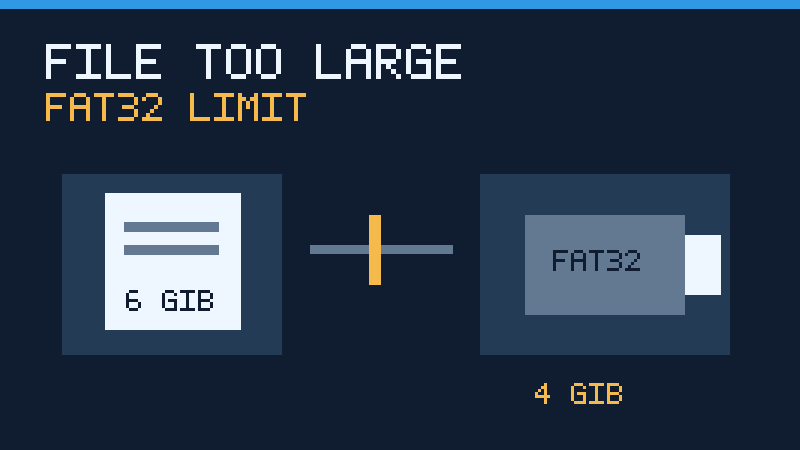

A storage drive can have plenty of space and still reject a large file. This guide explains how to confirm the underlying limit and choose a safe fix without accidentally losing important files.
Why The File Is Too Large Even When Space Is Available
When Windows displays a message that a file is too large for the destination file system, the problem is often not the amount of free storage. It is a limit on the size of one individual file. For example, a USB flash drive with 40 GB of available space might reject a single 6 GiB video because the drive was formatted as FAT32.
A file system is the method an operating system uses to organize files and directories on a storage volume. Different file systems have different limits and features. A storage device can have sufficient capacity to hold the data in total while its file system cannot represent one file of that size. The same error can occur with a memory card, external hard drive or portable SSD.
Microsoft’s file system comparison identifies FAT32 as having a roughly 4 GiB individual-file limit. The more precise FAT32 boundary is 4,294,967,295 bytes, which is one byte less than 4 GiB, as described in its Windows file system protocol documentation. A file at or above 4,294,967,296 bytes cannot fit as a single FAT32 file, even on an otherwise empty drive.
Do not immediately delete other files from the USB drive. Deleting data will not remove this particular size restriction. Check the file system and the source file’s actual size before deciding how to proceed.
Check The File Size And Destination File System
Use File Explorer in Windows 11 or Windows 10 to identify the source and destination. Open the folder that contains the file, right-click the file and select Properties. Look at its size in bytes. The displayed size rounded to GB may hide whether it is above or below the technical boundary.
- Connect the destination storage device and open File Explorer with Windows + E.
- Choose This PC and identify the correct drive by its name, capacity and drive letter.
- Right-click that drive and select Properties.
- On the General tab, look for File system and available space.
- Compare the file size with both the destination’s free space and its file system limits.
If the drive reports FAT32 and the file is larger than the supported boundary, the error is explained. If it reports exFAT or NTFS, do not assume FAT32 is involved. Check whether you are copying to a different partition, network location or application-managed storage rather than the drive you inspected.
When the device has several partitions, each partition can use a different file system. A computer may display more than one letter for the same physical device. Verify the actual destination selected in the failed copy operation.
Compare FAT32, exFAT And NTFS
Choose a file system according to where the drive needs to work, not simply according to which format Windows offers first.
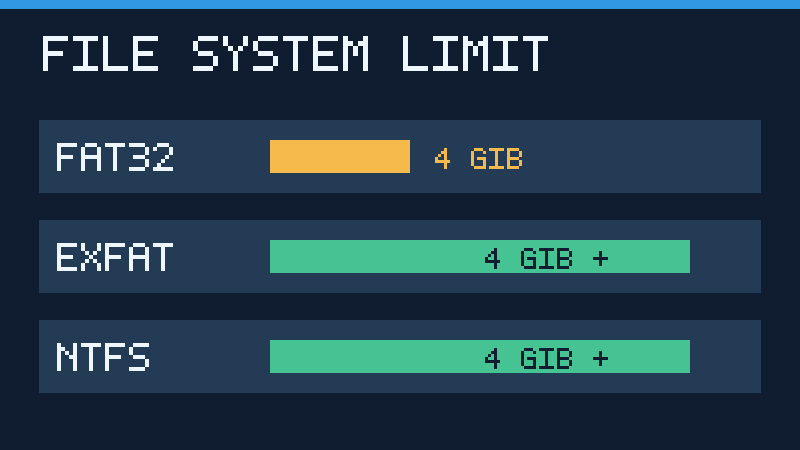
| File System | Single File At Or Above 4 GiB | Typical Use |
|---|---|---|
| FAT32 | Not supported | Legacy devices and small files |
| exFAT | Supported, subject to available space and device limits | Removable drives and large files shared across compatible systems |
| NTFS | Supported, subject to available space and system limits | Windows-centered storage, permissions and journaling |
For a general-purpose USB drive shared between modern Windows and Mac computers, exFAT is often a practical option. Apple documents exFAT as a Windows-compatible disk format. For storage used primarily with Windows, NTFS may be preferable when Windows file permissions and journaling matter. Neither is a universal choice for every television, camera, console or vehicle media player.
If the removable media is intended for a particular device, check that device’s supported file system, volume capacity and partition layout before changing anything. Its firmware might impose a separate file-size restriction even when the file system supports larger files. Do not reformat a working specialty or recovery drive merely to accommodate a single unrelated file.
Try A Different Destination Without Formatting
The quickest solution is sometimes to use storage that already supports large files. For example, if a FAT32 flash drive cannot hold a video, copy it to a compatible exFAT portable drive or an NTFS external SSD with enough free space. This avoids changing the original drive and preserves its existing contents.
Alternatively, if the goal is transferring a file to another computer, use an appropriate network share or a trusted file-transfer mechanism. Check the recipient’s destination capacity, permissions and file limits. Network transfers replace the physical transport step but do not remove restrictions on the receiving storage.
Use a copy operation rather than cutting or moving your only copy of an important file. Wait for the transfer to finish and confirm that the new copy opens properly. If the file is a large archive, run its integrity test if the archive tool supports one. For important data, keep a verified second copy in a separate location.
Back Up The Drive Before Changing Its Format
Formatting creates a new file system on the selected volume and makes its existing files unavailable through the ordinary directory structure. Both quick and full formats can cause loss of access to those files. A quick format does not mean existing files are safely retained.
Before formatting, copy the existing contents to another healthy storage device with sufficient space. Open several important files in the backup and confirm that the expected folders are present. If a backup program is used, verify that its restore process is available. Include anything that is not easily recreated, such as school assignments, work documents, personal photos and device-generated files.
Do not proceed if the drive contains the only copy of important information. A storage device that has suddenly begun disconnecting, reporting read errors or appearing as RAW requires a different troubleshooting approach. If its data matters, prioritize recovery instead of formatting it. See our guide to backing up essential files before major Windows changes.
Format A Compatible USB Drive As exFAT Or NTFS
After confirming compatibility and completing a verified backup, use File Explorer to format an ordinary removable data drive. The example below assumes that it is not a bootable installer, a system recovery partition or a device-specific card with a required layout.
- Connect the drive and open This PC in File Explorer.
- Check its letter, capacity and label again. Disconnect other unnecessary removable drives to reduce the chance of selecting the wrong device.
- Right-click the intended removable drive, then choose Format.
- Choose exFAT for compatible cross-platform use or NTFS for a supported Windows-centered workflow.
- Leave the allocation unit size at its default unless the storage manufacturer specifies otherwise. Enter a recognizable volume label if desired.
- Review the selected device and the erasure warning. Start only when the backup has been checked and you are sure it is the right drive.
- When formatting completes, open Properties to confirm the new file system. Copy a test file and then the large file you originally wanted to transfer.
Microsoft documents formatting behavior, supported file systems and default allocation sizes in its format command reference. The File Explorer method is preferable for most users because it gives a visible selection and warning. You do not need a command prompt, third-party partition software or disk-cleaning commands for this straightforward task.
If Windows cannot format the drive or reports errors during ordinary use, stop and check the storage manufacturer’s diagnostic guidance. Repeated formatting attempts are not a reliable fix for a failing device.
Split A Large File When FAT32 Must Be Retained
Some older devices require FAT32. If you cannot use another compatible file system, one option is to divide the original file into smaller pieces, provided that the receiving computer can reassemble those pieces. A reputable archive program with multi-volume archive support can create a set of parts smaller than the FAT32 boundary.
Choose a conservative part size, such as 2 GiB, so that rounding and archive overhead do not bring one part too close to the upper limit. Keep all the archive parts together and use a compatible tool to reassemble or extract them on the destination computer. The destination for the reconstructed original must support the full file size.
This approach is useful for transporting backups or large archives. It is not suitable when a device must read the original file directly, such as a television that expects a single playable video. Splitting a video into independently playable segments requires a media-aware tool and may alter playback behavior. Splitting any file into arbitrary archive fragments does not make those fragments usable by an ordinary media player.
Understand Why Compression Is Not Always Enough
You may be able to compress documents, logs or uncompressed data into an archive that fits under the FAT32 size limit. But many videos, JPEG images, compressed game packages and existing ZIP files are already compressed. Packaging them again may reduce their size very little or even add overhead.
Check the finished archive’s actual size in bytes before copying it. Keep the original file unchanged until the compressed copy has been checked. Avoid online compression services for confidential documents or private recordings unless their privacy and handling policies are suitable for your data.
If reducing the resolution or bitrate of a video is acceptable, create a separate smaller export rather than overwriting the high-quality original. This is a content transformation, not a repair to the storage device. It is only useful if the resulting file is appropriate for your intended use.
Handle The Error On Cameras, TVs And Other Devices
Many memory cards and portable drives are used in devices with limited or device-specific file system support. A television may support one format for reading videos but another for recording broadcasts. A camera may expect a particular format or directory structure, and may split long recordings automatically.
Read the exact model’s manual before reformatting its storage. If the device has a built-in format function, the manufacturer may recommend using it for cards dedicated to that device. Back up all footage and settings-related data first. A format that works on a computer might not be recognized by another device.
Bootable Windows installation media has its own requirements. FAT32 can be needed for certain UEFI boot workflows, while a Windows installation image may include a file too large for FAT32. Use the officially supported media-creation workflow rather than manually reformatting existing recovery media as a generic data drive.
What If The Destination Already Uses exFAT Or NTFS
Check the actual available space, not the advertised capacity of the physical drive. Confirm that the file is being written to the intended volume. If a copy fails through a browser, backup program, network service or file-transfer utility, test the same file with ordinary File Explorer on a known-good local volume where it is safe to do so.
Applications can impose their own upload or file-size limits, and a network share may store data on an underlying filesystem that differs from your local computer. If a third-party device created a particular partition or volume layout, consult its documentation. A general-purpose large-file format does not guarantee that every application can handle every file size.
If several smaller files also fail to copy, inspect the drive’s connection and permission state. Try another compatible cable or port where appropriate. Do not run repair utilities against a failing drive that holds irreplaceable data before considering recovery. For ordinary local space shortages, our Windows 11 disk cleanup guide explains how to identify unnecessary files without indiscriminate deletion.
Verify The Transfer Before Removing The Drive
Once the large file has copied, compare its size with the original. Open the new file using a suitable application if doing so is safe. For a critical file, compare cryptographic hashes using a trusted local tool; matching SHA-256 values provide strong evidence that the two copies contain the same bytes.
Wait for writes to finish before disconnecting removable storage. Close programs using the device and follow the Windows safe-removal process where available. Avoid pulling a drive out in the middle of a copy, archive extraction or format operation.
Keep the verified backup until the destination has been tested with the actual receiving device. Copying successfully on Windows does not prove that another device supports the file system or the file’s content. If accidental formatting or deletion has already happened, avoid further writes to the affected volume. Microsoft’s Windows File Recovery guide describes recovery options, although recovery is not guaranteed.
Frequently Asked Questions
Why Can I Not Copy A 5 GB File To A USB Drive With Free Space?
If the USB drive uses FAT32, its individual-file limit is likely the cause. Confirm the file size and the destination’s format in Properties.
Can FAT32 Store A File Exactly 4 GiB In Size?
No, FAT32’s maximum individual file size is 4,294,967,295 bytes, one byte below 4 GiB.
Can I Fix The Error Without Formatting?
Yes, you can use another compatible drive, transfer the file over a suitable network, or split it into smaller parts if the recipient can reconstruct it.
Will Changing FAT32 To exFAT Delete My Files?
Formatting a FAT32 volume as exFAT makes its current files inaccessible through the original filesystem. Back them up and verify the backup before formatting.
Is exFAT Better Than NTFS?
It depends on the intended devices and features. exFAT is useful for compatible cross-platform removable storage; NTFS is useful for Windows-centered storage and its richer security and journaling features.
Should I Delete Files To Fix This Error?
No, deleting files cannot increase the maximum individual-file size of FAT32. It only helps when insufficient available space is the actual cause.
Can A 64 GB FAT32 Drive Hold A 10 GB Video?
No, its overall capacity does not override FAT32’s individual-file limit. Use a compatible large-file system or a suitable alternate delivery method.
Technical References
Primary documentation: Microsoft File System Functionality Comparison, Microsoft File System Protocol Product Behavior, Microsoft Format Reference, Apple Disk Utility File System Formats and Microsoft Windows File Recovery. The illustrations are original conceptual diagrams, not actual screenshots. The procedure is documentation-based and was not physically tested on every storage device.


