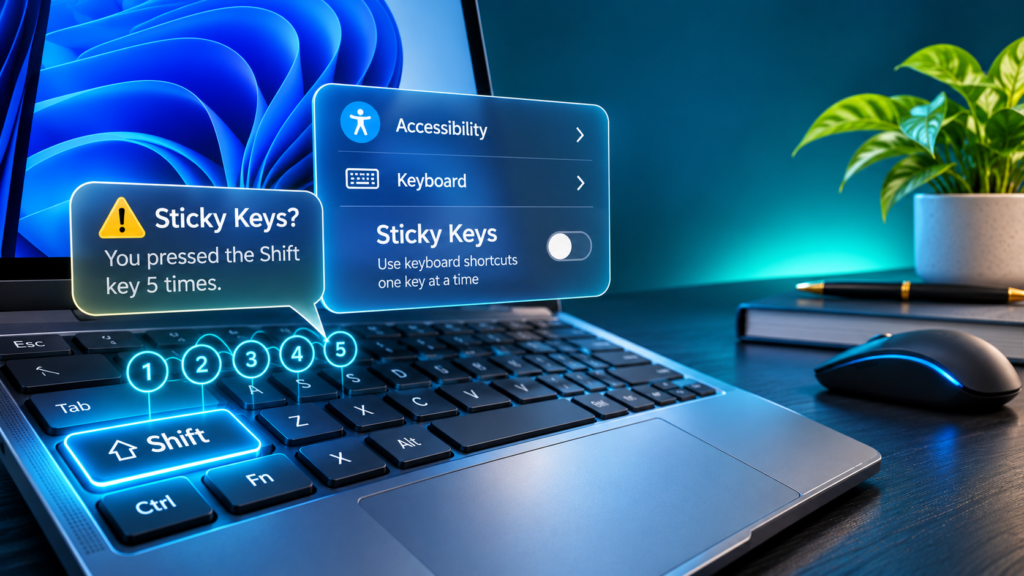

When a Sticky Keys popup interrupts a game, work session or normal typing, the fastest fix is often one Windows setting. The important part is distinguishing the feature itself from the shortcut that activates it. Disabling the wrong option can inconvenience someone who uses the accessibility feature every day.
This guide follows Microsoft’s Windows accessibility documentation and a reversible diagnostic sequence. It explains how to stop unwanted dialogs, recognize related keyboard symptoms and identify cases that actually involve hardware, keyboard utilities or remote desktop. Instructions are documentation-based; no claim is made that a particular device was physically tested.
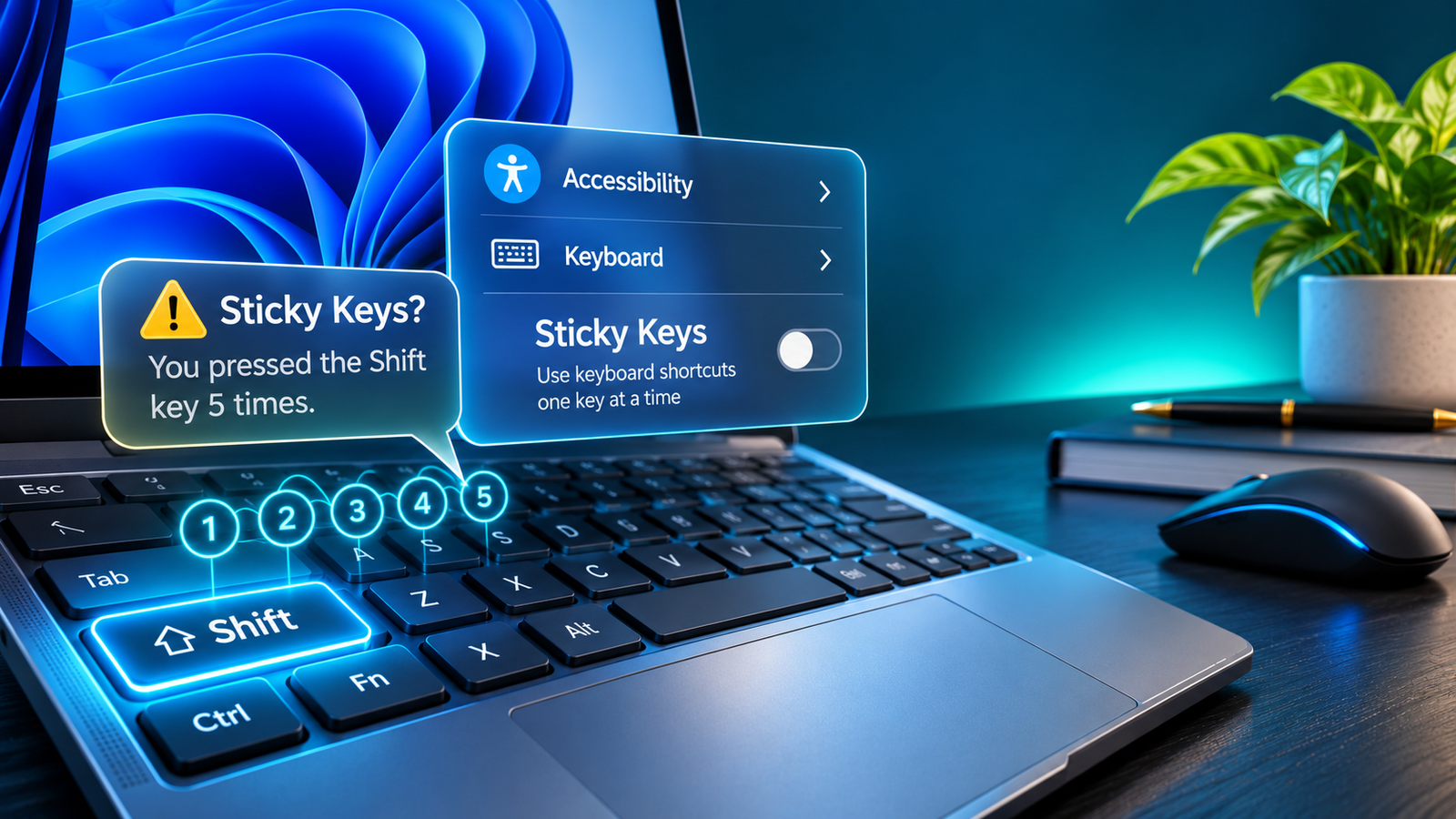
Understand What Sticky Keys Does
Sticky Keys is a Windows accessibility feature that allows a person to use combinations such as Ctrl + S without holding multiple keys at the same moment. Windows remembers a modifier key after it is pressed, so a following key can complete the shortcut. This is valuable for people who find simultaneous key presses difficult, and it is not a defect or a virus. The problem arises when the feature is activated without the person’s intention or a keyboard shortcut makes it appear unexpectedly.
A typical report is that pressing Shift several times brings up a dialog, a sound plays while typing, or Ctrl and Alt appear to remain engaged. Those observations are clues rather than proof that the feature is active. A physically sticking modifier key, remote keyboard application or Filter Keys configuration can imitate some symptoms. Confirm the setting before changing unrelated keyboard drivers.
Quickly Stop An Unexpected Sticky Keys Prompt
If you see a dialog offering to turn on Sticky Keys after pressing Shift repeatedly, choose the option that leaves the feature disabled if that is your preference. Do not assume dismissing the dialog permanently disables its keyboard shortcut. The next set of five Shift presses may trigger it again, depending on the configuration and Windows build.
To stop repeated prompts, open Settings with Windows + I, select Accessibility, choose Keyboard and inspect Sticky keys and its related settings. If someone uses Sticky Keys intentionally, preserve the main feature and change only the shortcut behavior after discussing it with them. The goal is to prevent unwanted activation without taking away a useful accessibility option.
Open The Correct Windows 11 Accessibility Page
In Windows 11, the relevant controls are found under Settings > Accessibility > Keyboard. You can also use Windows + U to open accessibility settings, then navigate to Keyboard. The main Sticky keys control shows whether the feature is currently enabled. On some builds, selecting the Sticky keys row opens additional preferences, including the keyboard shortcut that turns the feature on.
Do not look for these settings only in the old Control Panel or follow Windows 10 screenshots without checking the current page. Microsoft has moved and refined interface controls across releases. The plain-language feature labels are more reliable than the exact position of a toggle on somebody else’s desktop. A managed work computer may restrict changes, in which case ask its administrator.
Why Pressing Shift Five Times Opens A Dialog
Microsoft documents pressing Shift five times as the accessibility shortcut for Sticky Keys. That makes the feature easy to reach without a mouse, but it also means a keyboard test, game, repeated capitalization or accidental repeated Shift presses can produce a prompt. A laptop is not necessarily faulty simply because this dialog appears.
Think of the five presses as a trigger, not a command to permanently repair a keyboard. It can turn Sticky Keys on or off depending on the system state and user confirmation. If you repeatedly encounter the dialog, investigate the shortcut preference in Settings. Avoid disabling all accessibility shortcuts or editing registry values just to prevent one particular prompt.
Turn Off Sticky Keys Without Changing Other Features
If Sticky Keys is turned on and you do not need it for the current task, switch it off using the main control in Settings > Accessibility > Keyboard. Test a familiar shortcut such as Ctrl + C in a disposable text document, then type a few characters normally. This checks whether modifiers are behaving as expected without risking saved work.
Turning off Sticky Keys does not uninstall a keyboard, remove language packs or delete files. It changes the way modifier keys are handled. However, the shortcut can still remain enabled, so the prompt may return later. Consider the next step if the actual complaint is repeated activation rather than the feature’s normal operation.
Disable Only The Five-Shift Shortcut
Expand or open the Sticky keys preferences in the Keyboard accessibility page. Look for the option that allows the keyboard shortcut to start Sticky Keys. Turn this particular shortcut off if five rapid Shift presses are causing interruptions. Keep the main feature accessible through Settings for a person who wants to use it manually.
The wording and location of the option may vary between Windows builds. A shortcut may also be offered as a choice in a new confirmation prompt on some versions, but do not rely on an interface element that your PC does not show. Check the configuration page directly. After making the change, tap Shift five times in a test application and confirm that no unwanted dialog appears.
Know The Difference Between Sticky Keys And Filter Keys
Sticky Keys helps with multi-key combinations by remembering modifier keys. Filter Keys is a different accessibility feature that can change how Windows reacts to brief, repeated or held keystrokes. Someone who reports that letters seem to be ignored or that keys must be held down should not assume Sticky Keys is responsible. Filter Keys has its own settings and shortcut behavior.
Open Settings > Accessibility > Keyboard and inspect the switches separately. Record which features were on before changing them, especially on shared devices. If normal typing fails only when a particular Bluetooth keyboard is connected, a device connection issue may be more relevant. Our guide to Bluetooth keyboards connected but not typing covers that distinct scenario.
Understand Toggle Keys And Keyboard Sounds
Toggle Keys can make sounds for lock keys such as Caps Lock, Num Lock or Scroll Lock. Sticky Keys can also produce auditory feedback depending on its configuration. A beep when typing therefore does not by itself identify the active feature. First determine which key was pressed and whether a visible accessibility prompt appeared.
Review the individual keyboard accessibility settings instead of turning off all audio or changing system volume. When a sound is useful to a device user, preserve it where possible. If the system beeps during ordinary typing, compare behavior with the on-screen keyboard and test the physical keyboard gently to separate a software option from an input-device problem.
Check Sticky Keys Modifier Lock Behavior
Some Sticky Keys preferences affect what happens when a modifier is pressed repeatedly, including whether the modifier becomes latched or locked until another action releases it. If every letter behaves as though Ctrl or Shift is still pressed, look at the on-screen indicator and the Sticky Keys settings before assuming the physical key is jammed.
You can test safely in Notepad or another unsaved scratch document: tap a modifier, type one harmless letter, release it and repeat a known shortcut. Avoid testing with a command that closes a program or deletes a file. Write down the sequence that reproduces the issue. This is more useful for support than saying that the keyboard is randomly broken.
Investigate A Stuck Physical Shift Key
A damaged or physically obstructed Shift key can generate repeated key events that resemble a shortcut problem. Inspect whether the key returns to its normal height and whether crumbs, debris or a fitted keyboard cover interfere with it. Do not lever the keycap off a laptop without model-specific service instructions, since delicate retention clips can break.
If an external keyboard is available, disconnect the suspect keyboard and test with a different one. If the problem occurs only on one device, inspect its manufacturer support documentation. A visually stuck key and a Windows accessibility shortcut may coexist, so solving one does not automatically explain everything. Avoid liquid cleaning methods while the device is powered.
Test The On-Screen Keyboard As A Diagnostic Aid
The built-in On-Screen Keyboard provides a way to enter keys when a hardware keyboard is unreliable. Windows accessibility shortcuts include Windows + Ctrl + O for opening this tool. Use it to test a simple shortcut and compare what happens when you use the physical keyboard. This is an observational test, not a hardware repair.
If typing with the on-screen keyboard works normally but the physical keyboard repeatedly triggers Shift events, focus on the hardware, a driver-specific utility or keyboard mapping software. If the same modifier behavior appears with both, the accessibility configuration becomes more plausible. Keep the test small and avoid entering account passwords during a screen-sharing session.
Look For Keyboard Utility And Macro Conflicts
Gaming keyboards, programmable laptop hotkeys, accessibility utilities and macro software can send sequences that include Shift. A profile assigned to a mouse button or gaming key might accidentally send five Shift presses in quick succession. The behavior can look like Windows is turning on Sticky Keys by itself even though an external application is generating the trigger.
Open the utility’s settings and examine the active profile. If the issue began after importing a macro or changing a key binding, disable that one assignment temporarily and retest. Do not uninstall a vendor utility used for keyboard lighting, accessibility or special function keys without understanding what else it controls. One reversible change at a time preserves a clear diagnostic path.
Check Games That Use Shift Repeatedly
Many games use Shift for sprinting, crouching or special actions. A player may repeatedly tap it while moving, causing the operating system’s shortcut to appear over a full-screen game. This does not mean the game’s files are damaged or that the graphics card is failing. It is often an interaction between an ordinary game control and a system-wide accessibility shortcut.
Use the Windows Keyboard accessibility page to disable the shortcut if it is not needed, then test the game again. If Sticky Keys is intentionally used outside gaming, restore or adapt the preference afterward. Avoid unsupported game configuration edits or installing third-party tools that promise to block Windows functions globally when one built-in control resolves the interruption.
Investigate Remote Desktop Input Differences
Remote desktop software can pass keyboard combinations between a local PC and a remote computer. Depending on the application, a modifier sequence may affect one machine but not the other. If the prompt appears only during remote work, determine whether it belongs to the local desktop or the remote session before changing settings.
Inspect the shortcut preferences on the machine where the dialog appears and compare the remote application’s keyboard handling options. The proper fix may be on the host computer, not the device in front of you. For a broader overview, see our remote desktop software selection guide for related remote-session considerations.
Check Whether Accessibility Settings Are Managed
A workplace or school computer may have policies that govern parts of Windows accessibility or keyboard configuration. If a control is unavailable, locked or restored after sign-in, ask the administrator rather than attempting to bypass the restriction. Management policies, roaming settings and user profiles may influence what you see.
Explain the exact prompt, the five-Shift trigger and the configuration page you checked. Include the Windows edition and whether the behavior occurs in a local session or remote desktop. This allows an IT team to distinguish an intentional accessibility policy from an accidental shortcut activation without exposing private files or requiring risky system changes.
Check Whether The Problem Returns At Sign-In
If Sticky Keys remains off until you sign out or restart, record when the setting changes. Test once after a normal sign-in before launching games or utilities, then test after starting your usual applications. A repeatable trigger after one program launches points toward a shortcut utility or configured task rather than a mysterious Windows defect.
Do not disable every startup application at once. That destroys the evidence of which component contributed. If you need to investigate startup software, make a short list of nonessential applications, change one at a time and restore settings afterward. On a managed machine, follow your organization’s support process before modifying startup items.
Understand The Sign-In Screen Difference
Accessibility tools can be available at the Windows sign-in screen to support people who cannot use the keyboard in a conventional way. That does not mean a popup seen before signing in is malware. It also means the settings available at the sign-in screen may not look exactly like those within a signed-in user’s profile.
If you cannot sign in because the physical keyboard is failing, use the built-in accessibility options to enter credentials through approved methods. Do not turn off assistance for a shared device without checking the needs of the people who use it. If the screen remains inaccessible, use Windows recovery or manufacturer support rather than random registry instructions.
Avoid Unnecessary Driver Reinstallation
Sticky Keys is a Windows accessibility feature, so reinstalling keyboard drivers rarely makes sense as the first step when the five-Shift shortcut is plainly involved. First verify the accessibility controls, the shortcut option and the source of repeated Shift input. Only broaden the investigation when ordinary keys malfunction, disappear from Device Manager or fail across different applications.
If driver support really is indicated, obtain guidance from Windows Update or the device manufacturer. Avoid download advertisements and unsigned ‘keyboard fixer’ utilities. Our Windows 11 keyboard shortcuts troubleshooting guide covers broader shortcut failures that require a different diagnostic approach.
Separate Shortcut Problems From Clipboard Problems
When Ctrl + C or Ctrl + V does not behave normally, it can be tempting to blame Sticky Keys. But clipboard history, application restrictions, remote desktop redirection and broken shortcuts have distinct causes. First test whether ordinary modifier combinations work, then determine whether copying or pasting fails even when the keys are registered correctly.
If a shortcut works but clipboard history is missing, use the dedicated Windows 11 Clipboard History guide. Keeping the fault domains separate avoids changing accessibility settings unnecessarily and prevents a useful accessibility configuration from being disabled because a different Windows feature is not responding.
Use A Safe Five-Step Troubleshooting Table
The efficient order is to identify the trigger, inspect Sticky Keys, check its shortcut, test the keyboard and then investigate third-party utilities. At each step, decide whether the problem is fixed before continuing. A visible prompt after five Shift presses is a more specific clue than an occasional beep or an unreliable character.
Create a small record with columns for observation, setting, change and result. For example: ‘Shift pressed five times; popup appeared; shortcut disabled; no popup during retest.’ This is useful when supporting a family member or coworker. The aim is to learn the cause rather than accumulate changes you cannot easily reverse.
| Check | Expected Observation | Next Action |
|---|---|---|
| Shift pressed five times | Sticky Keys popup appears | Inspect shortcut preference |
| Keyboard Accessibility | Feature switch is on or off | Preserve intentional settings |
| External keyboard | Prompt follows one device | Inspect hardware or macros |
| Other accessibility options | Different popup or beep | Check Filter Keys or Toggle Keys |
Respect Shared Device Accessibility Needs
Sticky Keys is often used for legitimate mobility and dexterity needs. A setting that feels inconvenient to one user may make basic shortcuts possible for another. If a computer is shared, agree on whether the shortcut should remain enabled and whether the main feature should be on for a particular account.
If repeated activation causes problems for an individual without that accessibility need, turning off only the shortcut is often a more considerate choice than disabling every input accessibility option. Document how to restore the setting and keep personal profiles separate where possible. Treat accessibility features as tools, not unwanted software.
What To Do If The Popup Still Appears
If the shortcut option is disabled but a similar popup continues, first read the exact title and text on the dialog. It may be a Filter Keys notification, a manufacturer keyboard assistant or a program-generated warning. Capture a screenshot with private details hidden and compare the message to the relevant built-in Windows feature.
Inspect the currently active keyboard utilities and ensure the setting was saved in the user account you are using. Check whether a second device, remote desktop session or external keyboard is connected. Resist automated registry cleaners. A screenshot and a reproducible sequence give support staff a much better starting point.
When To Contact Support
Contact device support when the physical Shift key repeats without being pressed, a keyboard stops responding consistently or there are signs of liquid or impact damage. Contact workplace IT when controls are managed or the issue only occurs in a remote environment. A persistent accessibility dialog alone does not justify replacing the keyboard.
Tell support the exact Windows version, which keyboard you used, whether five Shift presses caused the prompt, the Sticky Keys toggle state and what happened with an external or on-screen keyboard. Share no passwords or sensitive account information. Clear results shorten diagnosis and reduce the chance of destructive repairs.
Keep The Problem From Returning
When the problem is resolved, record whether the actual cause was the five-Shift shortcut, a stuck key or a macro profile. Leave the setting in a deliberate state and explain the difference between disabling a shortcut and disabling the accessibility feature itself.
After major Windows updates, do a quick visual check if the behavior returns. You do not need to repeatedly toggle options while everything is working. A short, accurate record of the original cause is more useful than a long collection of generic keyboard troubleshooting tricks.
Frequently Asked Questions
Why Does Windows 11 Keep Asking Me To Turn On Sticky Keys?
The five-Shift shortcut may still be enabled. Open Settings > Accessibility > Keyboard > Sticky keys and review the keyboard shortcut option. If a physical key or macro sends repeated Shift presses, investigate that input source as well.
How Do I Turn Off The Sticky Keys Popup Permanently?
Disable the shortcut that starts Sticky Keys when Shift is pressed five times, rather than only dismissing the dialog. You can keep the feature available through Settings if a user needs it. Exact label placement can vary by Windows version.
Will Disabling Sticky Keys Affect My Files?
No, the setting changes how Windows handles keyboard modifiers, not your personal documents. Still, preserve intentional accessibility settings on shared computers.
Why Does The Popup Appear While Gaming?
Many games use Shift for movement actions. Repeated presses may trigger the Windows accessibility shortcut when it is enabled. Change the shortcut option in Windows and test the game again.
Is Sticky Keys A Virus Or Malware?
No, Sticky Keys is a legitimate accessibility feature included with Windows. A popup after five Shift presses is expected shortcut behavior when enabled. Investigate security concerns only if there are independent indicators of compromise.
What Is The Difference Between Sticky Keys And Filter Keys?
Sticky Keys lets you use modifier combinations one key at a time. Filter Keys can change how Windows processes short, repeated or held inputs. Check the two accessibility controls separately because the symptoms and remedies differ.
Can I Keep Sticky Keys But Disable Its Shortcut?
Yes, on supported Windows 11 configurations, the shortcut preference is separate from the main Sticky Keys setting. This allows someone to use the feature intentionally without accidental activation from repeated Shift presses.
Why Does My Keyboard Beep When I Press Shift?
A configured accessibility sound may be responsible, but a beep does not identify a single feature. Check Sticky Keys, Filter Keys and Toggle Keys preferences, and see whether a physical key is repeating.
What If Sticky Keys Turns On Again After A Restart?
Note whether the setting changes immediately after signing in or after opening a keyboard utility, game or remote desktop session. Test one component at a time and consult IT if the PC is managed.
Should I Edit The Registry To Disable Sticky Keys?
No, not as the normal remedy. Windows provides supported controls in Settings > Accessibility > Keyboard. Registry edits and third-party cleaners introduce unnecessary risk for a problem that usually has a reversible settings solution.
Official References
The references below are the documentation basis for the accessibility behavior, shortcut descriptions and settings paths. Exact controls can differ between Windows builds and managed devices.
- Microsoft: Make Your Mouse, Keyboard, And Other Input Devices Easier To Use
- Microsoft: Windows Keyboard Shortcuts For Accessibility
- Microsoft: Use A Screen Reader And Keyboard To Navigate The Windows Accessibility Flyout
- Microsoft: Keyboard Shortcuts In Windows
- Microsoft: Navigate And Explore The Windows Taskbar
- Lenovo: How To Turn Sticky Keys On Or Off