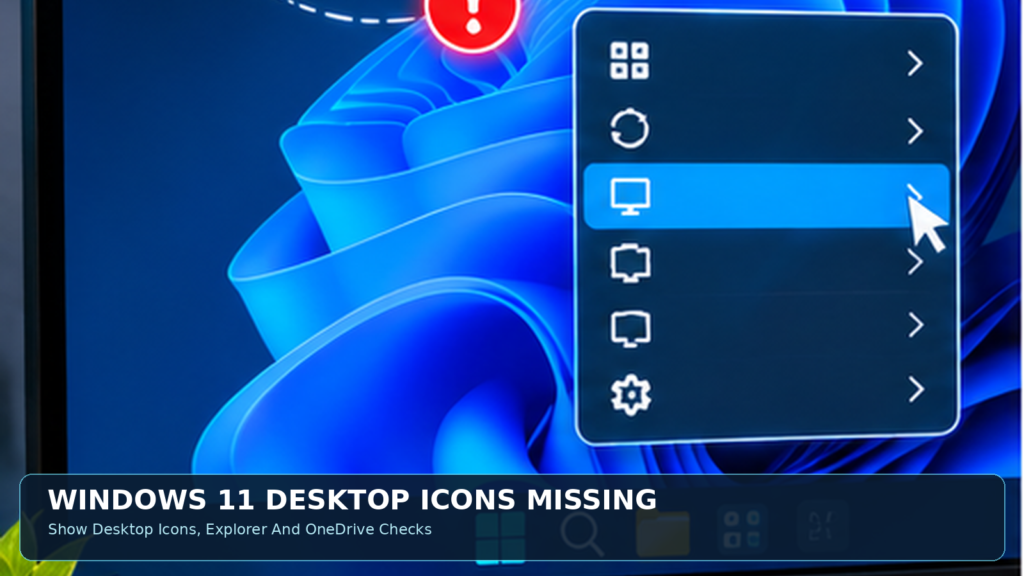

This article separates visual icon settings from deleted shortcuts, broken paths, Explorer failures and cloud folder changes.
What It Means When Desktop Icons Disappear
Desktop icons may vanish because Windows is configured not to display them, a particular shortcut was removed, the user changed accounts, a cloud-backed Desktop moved to another folder, or Windows Explorer stopped presenting the shell normally. These are different conditions with different solutions. First determine whether the desktop wallpaper and taskbar are still visible and whether File Explorer can open. If the screen is completely black, address that wider symptom separately. If only one icon disappeared, do not reset an entire account. Check where the item normally lives and whether it is a shortcut or an actual document. A careful classification protects files and avoids applying drastic recovery methods to a visual setting. For that related issue, see our Taskbar Icons Missing guide.
The Fastest Fix: Show Desktop Icons
Right-click an empty desktop area, point to View, then enable Show desktop icons. Microsoft documents this option as the normal way to hide or restore desktop item visibility. If this checkbox was cleared, Windows can display a wallpaper with no icons while leaving the underlying files in place. When the items return, test a few trusted shortcuts and stop troubleshooting. Do not remove a Windows update or reinstall an application just because the icons were hidden. If the context menu does not respond, investigate whether Explorer is frozen rather than assuming a visibility setting is absent. The simple right-click view control is the right first check for a healthy desktop with all items visually missing. The corresponding control is documented in Microsoft Desktop Icon Customization.
Hidden Icons Are Not Deleted Files
Windows can hide desktop shortcuts without deleting files, and it can delete a shortcut without uninstalling an application. A shortcut is a reference to another location rather than necessarily the original data. An actual document saved on the Desktop is different: if it was deleted, its content may require restoration from Recycle Bin, cloud history or backups. Before using any recovery tool, ask whether the expected item appears in File Explorer and whether it opens. A shortcut with a wrong target and a desktop that hides all entries will look different to the user but may require only a small change. Understanding this distinction prevents unnecessary duplication of files and avoids deleting good data during a supposed icon repair.
Inspect Desktop In File Explorer
Open File Explorer and navigate to the Desktop entry, then look for the expected files and shortcuts. If they are present in the folder but absent from the visible wallpaper, focus on presentation, Explorer and desktop view settings. If they are absent from the folder, verify that you are viewing the right profile and path before claiming data loss. Windows can have user-specific Desktop folders, a shared public Desktop and cloud-backed locations. A folder named Desktop is not always the authoritative folder for the current sign-in. Record the path of any file you find and make an independent copy of important data if a migration or sync change may be involved. For that related issue, see our What Is A File System guide.
Restore Recycle Bin And This PC
If most shortcuts are visible but standard system icons such as Recycle Bin or This PC are missing, use Settings > Personalization > Themes > Desktop icon settings. Select the particular system icons you want and confirm. That dialog is separate from the View option that hides every desktop icon. It also does not reconstruct arbitrary application shortcuts or files that were deleted. Microsoft’s Recycle Bin guidance describes these controls and how to find Recycle Bin when its normal icon is absent. Do not download replacement icons or registry patches from unfamiliar sources simply to restore a built-in Windows item. Check the supported interface and whether the relevant box is selected. The corresponding control is documented in Microsoft Recycle Bin Settings.
How OneDrive Can Change The Desktop Folder
OneDrive folder backup can synchronize the Desktop and change which path Windows or File Explorer uses for stored items. After signing into a different OneDrive account, enabling backup or stopping it, the desktop may appear different even though files exist elsewhere. Microsoft’s OneDrive help explains how to identify a different Desktop folder and check the Location property when applicable. Compare the active Desktop folder with the relevant OneDrive folder and verify the expected documents before moving them. Cloud-synced items may have different availability states, and account switching can make a correct folder look empty. Treat this as a storage-location issue rather than assuming a missing desktop shortcut means a cloud document has been destroyed. The corresponding control is documented in Microsoft OneDrive Missing Desktop Icons Guidance. For that related issue, see our OneDrive Not Syncing Files guide.
Protect Synced Files Before Moving Anything
Do not drag entire folders or delete suspected duplicate OneDrive files until you understand which copy is authoritative. A deletion in a synchronized folder can propagate to other devices and the cloud. First check the OneDrive account, sync status and whether important files open when requested. If you are changing Desktop folder backup, read the provider’s current instructions and preserve an independent backup of irreplaceable material. OneDrive can be a helpful recovery source, but it can also create confusing path differences when multiple accounts have been used. The goal is to locate existing content, not to perform a broad cleanup. A missing desktop view is not a sufficient reason to disconnect an account or empty a sync folder. The corresponding control is documented in Microsoft OneDrive Folder Backup Instructions.
Restart Windows Explorer For A Shell Glitch
Windows Explorer manages important parts of the desktop and taskbar. If both seem unresponsive, open Task Manager with Ctrl + Shift + Esc, find Windows Explorer and select Restart where available. Windows may briefly redraw the desktop as the shell process restarts. This is a targeted troubleshooting step for a shell that is not refreshing normally, not a fix for a truly deleted document. Save important work when the system is unstable, and do not force a power-off while servicing is visible. If Task Manager itself will not open, follow the supported Windows troubleshooting procedure rather than downloading a command script. A one-time Explorer restart is less disruptive than resetting the Windows profile or reinstalling the operating system. The corresponding control is documented in Microsoft Windows Blank Screen Troubleshooting. For that related issue, see our Task Manager Not Opening guide.
Check Which Windows User Is Signed In
Different Windows accounts can have different desktop contents. If the family computer was signed into a guest profile, a work profile or a second personal account, the icons may look unfamiliar because you are not viewing the same Desktop folder. Open Settings > Accounts to inspect the signed-in identity and verify it is the expected one. Avoid changing ownership or permissions on another person’s files without authorization. If Windows created a temporary profile after a sign-in problem, that is a separate recovery scenario. A normal desktop icon visibility toggle cannot fix an incorrect profile context. Find out whether the documents exist in the original user account before copying them into a new location or replacing the profile.
External Monitors And Icon Arrangement
Changing monitor layout, resolution or display scaling can alter where desktop items are positioned. Some shortcuts may be outside the portion of the desktop the user is watching after disconnecting a second screen. Review Settings > System > Display and confirm the active monitor arrangement. Right-click the desktop and check View options such as icon size, Align icons to grid and Auto arrange icons. Note that automatic arrangement can change your preferred positions, so avoid toggling it repeatedly. A rearrangement may bring existing shortcuts into a predictable grid but will not recover deleted files. If the monitor itself is not detected or the screen has no picture, focus on display troubleshooting instead of desktop shortcut settings.
Change Icon Size Without Losing Layout
Desktop View supports several icon sizes. Very large icons can occupy much of the visible area, while tiny icons may be difficult to identify. Choose a usable size and confirm that labels are legible. This is a presentation adjustment; it neither installs applications nor restores missing documents. If an app opens correctly despite a generic-looking icon, the problem may be icon artwork rather than visibility. Avoid treating every visual change as file corruption. Consider accessibility needs when selecting size and display scaling, particularly on a high-resolution laptop. After adjustment, verify that important shortcuts and folders remain where you expect, and stop making changes if the desktop is now usable.
Desktop Shortcuts Vs Taskbar Buttons
Taskbar pins, Start menu entries and desktop shortcuts are three different navigation surfaces. An app may still be installed and accessible through Search even if its desktop shortcut was removed. The reverse is also possible: a desktop shortcut exists even when the Start menu is malfunctioning. Check whether the application launches through a trusted Start or Search result before reinstalling it. Our separate guides cover missing taskbar pins and Start menu behavior, which should not be confused with a missing desktop item. Reinstalling a working application can reset settings or remove locally stored data in some cases. If only a shortcut is missing, recreating a legitimate shortcut is usually the narrower and safer fix. For that related issue, see our Start Menu Not Opening guide.
Repair A Shortcut With A Broken Target
If an icon is visible but opening it reports a missing file, inspect its properties and target location. A document or application may have been renamed, moved or uninstalled after the shortcut was created. Use File Explorer to locate the genuine target, including authorized cloud storage locations. Update or recreate the shortcut only after verifying the real file or executable. Do not download an unfamiliar .lnk shortcut from a search result, because shortcuts can execute commands. A broken target requires a path correction rather than a Show desktop icons change. Protect the original document and avoid creating multiple links pointing to uncertain versions of a file.
Check Recycle Bin For Deleted Items
If a desktop shortcut or document was actually deleted, inspect Recycle Bin and look for the expected name and location. Restore recognized items cautiously and verify the result. Not all deleted data will be present there, particularly when cloud services, removable drives or permanent deletion methods are involved. Avoid emptying Recycle Bin while diagnosing a missing-file problem. If the item is an important document and the storage device may be failing, minimize unnecessary writes and seek appropriate recovery help rather than installing unknown utilities. For a missing shortcut to an application that is still installed, a new shortcut may be sufficient; for the original data file, a proper backup or version recovery might be necessary.
What White Or Blank Icons Mean
Some users see a white generic document icon instead of the usual application artwork. If the shortcut still opens the expected target, it is not the same problem as a deleted or hidden item. Icon rendering, file associations or application resources may have changed. Start by testing one affected application and determining whether the problem occurs across every icon. Do not run broad icon-cache deletion scripts from unverified sources without understanding what they alter. If the program itself fails to open, use that application’s official repair guidance. A purely visual artifact can be annoying, but it does not justify aggressive changes to registry permissions or user-profile folders.
Check Changes After A Theme Or Update
A new Windows theme can modify certain standard desktop icon preferences, and a Windows update may change interface appearance or require a normal restart. Review the supported Themes and Desktop icon settings before assuming an update corrupted the system. Record when the problem began and whether other parts of Windows are affected. If the desktop is otherwise stable and a simple visibility change resolves the issue, there is no reason to uninstall a security update. If Explorer repeatedly crashes or the desktop fails to load, follow Microsoft’s official troubleshooting procedures and preserve important data. Distinguish a cosmetic change from a genuine operating-system problem before choosing a more disruptive repair.
When The Desktop Is Completely Blank
A black or unusable desktop with no normal taskbar is a wider problem than hidden icons. Check whether the display has a picture, whether you can access the Windows security screen and whether Task Manager can launch. Microsoft provides separate blank-screen troubleshooting guidance, including appropriate Explorer restart steps. If the monitor is disconnected or graphics output is failing, the View setting cannot restore the picture. Do not repeatedly interrupt a system that may be installing updates. Note the exact symptoms, including whether you can sign in and whether the cursor appears, before using recovery options. The distinction matters because a blank shell and invisible shortcuts require different diagnostic paths. The corresponding control is documented in Microsoft Windows Desktop Icon Guidance.
Cloud Status Icons And File Availability
OneDrive can use overlay symbols to show synchronization and file availability. A cloud-only file may be visible in File Explorer without a complete offline copy, while a synchronized local file may be available regardless of connection. If the desktop folder looks different, inspect OneDrive’s current sync state and account before editing or deleting anything. The absence of a familiar overlay does not by itself mean a file was lost. Test important documents through the expected account and folder. If synchronization reports an error, resolve that condition with the cloud provider’s supported instructions instead of using desktop icon settings. A reliable diagnosis separates where a file is stored from how Windows draws an icon for it.
Check File Explorer If Other Folders Are Slow
If File Explorer also freezes, hangs or shows missing folder contents, investigate the wider file-management problem. A temporary Explorer restart may help an isolated shell issue, but repeated failures can have other causes. Check whether ordinary files and folders open, whether the system has adequate storage and whether updates are pending. Avoid registry cleaners or scripts that promise to restore every icon through dozens of unrelated changes. A missing shortcut in an otherwise responsive system is a narrow problem. When the file manager itself is struggling, a broader system-health investigation is more appropriate. Record useful evidence rather than assuming the same solution applies to every desktop and taskbar symptom.
Do Not Use Registry Resets First
Online instructions sometimes recommend editing protected registry keys, deleting icon databases or reinstalling Windows immediately. Those steps carry more risk than checking whether Show desktop icons was accidentally disabled. On a home PC, begin with the View menu, Settings > Personalization, File Explorer and OneDrive account and folder checks. On a managed PC, respect policy and contact IT if necessary. If an official repair is warranted, back up files and understand its effect before proceeding. A reliable method uses the smallest reversible change that explains the observed symptom. A disappearing shortcut should not turn into a loss of personal data because troubleshooting instructions were unnecessarily aggressive. For that related issue, see our File Explorer Slow guide.
Decision Table: Choose The Right First Check
Match the visible symptom to the likely category. If every icon disappears but the actual Desktop folder still contains files, check Show desktop icons. If only Recycle Bin is absent, check Desktop icon settings. If an app shortcut is gone but the app runs, recreate the verified shortcut. If OneDrive Desktop files differ, examine the account and folder path. If the desktop and taskbar are unresponsive together, investigate Explorer or broader system behavior. This table-based approach prevents overdiagnosis. It is more useful than following a long list of increasingly disruptive fixes without stopping once the actual cause is identified.
Confirm The Fix After A Normal Restart
After restoring the expected items, open a few trusted shortcuts and verify that important documents exist in the correct folder. If OneDrive is involved, check synchronization and offline availability of needed work. Save any open documents and restart Windows normally if appropriate, then confirm the icons remain visible. If the issue returns, record what happened just before it, such as switching accounts, reconnecting a monitor or changing a theme. Do not assume that a shortcut graphic represents a verified backup. A successful fix restores predictable access without deleting source files, breaking cloud sync or disturbing unrelated Windows settings.
| Symptom | First Check | Important Difference |
|---|---|---|
| All Icons Missing | View > Show Desktop Icons | Items May Be Hidden |
| Recycle Bin Missing | Desktop Icon Settings | System Icon Preference |
| Cloud Files Seem Missing | OneDrive Folder Path | Data May Still Exist |
| Desktop And Taskbar Frozen | Explorer Responsiveness | Shell Problem |
| One Shortcut Fails | Inspect Target Path | Target Could Have Moved |
Prevent Desktop Icon Confusion In The Future
Keep a dependable backup of important files and know whether your Desktop folder is local or cloud-backed. Use clear names for shortcuts and remove obsolete links only after checking their targets. Avoid storing the sole copy of irreplaceable work in a temporary folder or treating an icon as evidence that the underlying file is protected. When moving to a new PC, verify the signed-in account and OneDrive folder backup choices instead of assuming that every shortcut will be recreated automatically. Teach household members the difference between hiding desktop items and deleting actual files. These habits make the next desktop-view change a simple adjustment rather than a feared data-loss incident.
Frequently Asked Questions
How Do I Show Desktop Icons Again?
Right-click an empty area of the desktop, choose View and enable Show desktop icons.
Does Hiding Icons Delete The Files?
No. The display option hides the items without deleting their underlying files.
Why Is Recycle Bin Missing?
Use Settings > Personalization > Themes > Desktop icon settings to restore its system icon.
Can OneDrive Make Desktop Files Look Missing?
Yes. Folder backup and account changes can make Windows display a different Desktop location.
Why Are Icons Off-Screen After A Monitor Change?
Display layout and scaling can affect shortcut positions, even when items still exist.
What If A Shortcut No Longer Works?
Check its target path and locate the real file or application before creating a replacement.
Should I Clear The Icon Cache Immediately?
No. Start with visibility, folders and Explorer behavior before advanced repairs.
Can I Restore Deleted Desktop Items?
Check Recycle Bin, cloud recovery or verified backups as appropriate for the missing item.
What If My Desktop And Taskbar Freeze?
Investigate Windows Explorer responsiveness and use supported system troubleshooting steps.
How Can I Verify The Icons Are Fixed?
Open the expected files and shortcuts, then check that they remain available after a normal restart.


