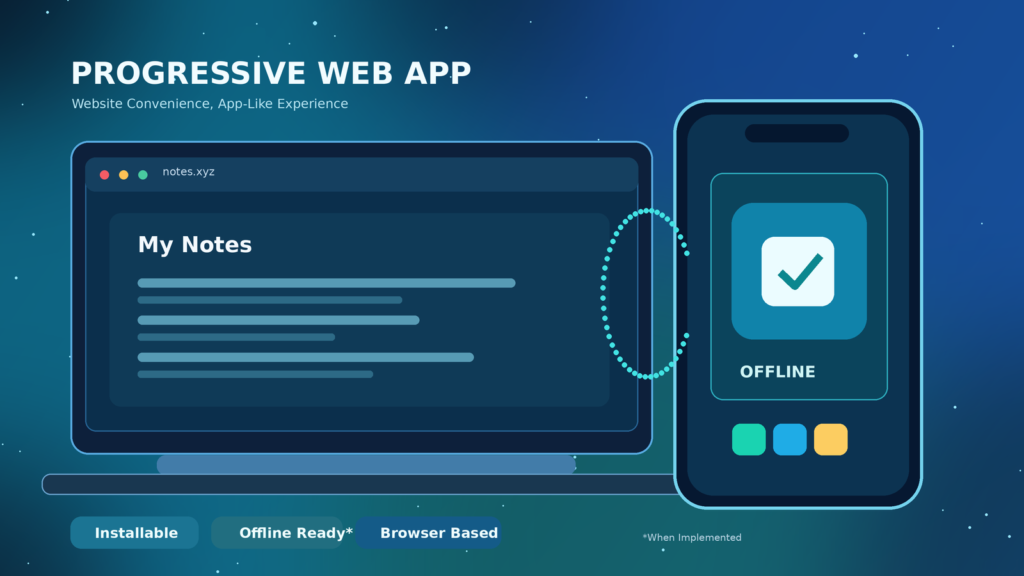

A progressive web app (PWA) is a website designed to deliver app-like conveniences such as installation and, where implemented, offline access and device integration. It still relies on web technologies and browser support. Installation does not automatically imply a service worker, complete offline functionality or the capabilities of a native app.
This user-focused guide explains web app manifests, service workers, Windows and mobile installation, security, permissions, updates, offline storage and how to decide whether an installable web experience is suitable.
What A Progressive Web App Actually Is
A progressive web app, usually shortened to PWA, is a website or web application built to take advantage of app-like features available through the web platform. A user can visit its web address in an ordinary browser and, on supported devices, may also install it to a home screen, Start menu or application launcher. Some PWAs offer offline content or notifications; others focus mainly on convenient launching. The exact behavior depends on the site, browser, operating system and permissions.
The word progressive refers to enhancing the experience when a device supports additional capabilities while keeping the core web experience accessible. PWAs commonly use HTML, CSS and JavaScript, so they are not a separate programming language or automatically a native desktop application. MDN’s Progressive Web Apps overview documents these design ideas. For background on the software that runs web content, see our web browser guide.
Why Websites Offer An Install Button
An installed web experience can be easier to reach than a saved bookmark. It may have its own launcher icon, taskbar presence and focused window that hides much of the browser’s usual interface. For someone who uses an online editor or project dashboard repeatedly, this can reduce friction. An install action normally relies on browser-managed functionality rather than downloading an unrelated executable from an advertising link.
Installation does not certify a publisher’s identity, promise offline operation or grant native-app access to every device feature. Some browsers even let users install ordinary websites as windowed apps without all the features associated with a typical PWA. Decide whether the particular installation provides useful convenience, and examine the service’s permissions and data recovery options before relying on it.
How A PWA Differs From A Regular Website
A regular website is typically opened in a browser tab, while a PWA may offer a dedicated launch mode, a web app manifest, selected local storage or more sophisticated request handling. Both remain part of the web ecosystem and can be reached through normal URLs. It is possible for a website to be useful without any installation feature, and an installed app may still need its original server for most of its work.
These categories overlap in real browsers. MDN’s installability documentation explains that some browsers permit installing sites that do not meet every manifest-based installation criterion. Therefore, the appearance of a launcher icon alone does not prove the site has a service worker, offline functionality or a complete PWA architecture.
PWA Vs Native App Vs Website Shortcut
A native application uses platform-specific runtime capabilities or frameworks and may be distributed through an app store or direct installer. A PWA uses web technologies and a browser engine to deliver its experience. A simple website shortcut might merely open the address inside a regular browser tab. Some modern browsers make the visual differences subtle by opening ordinary sites in standalone windows.
Native applications may support hardware, advanced background work or integration APIs that a browser does not expose. PWAs offer the benefit of a shareable address and a common web codebase, but this does not guarantee equal capabilities. Compare the actual task: a reading app with cached articles may work well as a PWA, while a specialized hardware utility may require native support. Choose based on tested functionality rather than a category slogan.
The Building Blocks Of A PWA
A useful mental model begins with the web application itself, adds a manifest describing its identity and presentation, and optionally includes a service worker and browser-managed storage. The manifest helps browsers present an installed icon and launch target. A service worker can implement network interception and offline caching. Storage may preserve selected resources or user-generated drafts according to a deliberate application design.
These are related technologies, not interchangeable terms. A manifest is not a complete downloadable program; a service worker is not a permanently running background daemon; and storage is not a guarantee of indefinite data preservation. Web.dev’s install criteria guide explains browser-specific requirements. Microsoft states in its PWA development guide that installing a web app in Edge does not require a service worker.
What The Web App Manifest Controls
A web app manifest is a JSON document that can describe an app’s name, short name, icons, initial URL, display mode and other presentation details. Supporting browsers and operating systems use these settings to create an application-like entry. The manifest itself does not fetch every offline file and does not automatically protect account information. Developers should choose identity fields carefully to avoid confusing users after site changes.
A well-prepared manifest points to real icon files in supported sizes and a useful launch location. Exact promotion requirements vary among browsers and change over time. MDN’s manifest reference describes members, while web.dev’s manifest tutorial covers practical implementation. A missing icon or invalid metadata may affect install prompts even though the website still loads.
What Service Workers Really Do
A service worker is JavaScript that can run separately from an open page and respond to certain events, including relevant network requests. Within its registration scope, it may choose to deliver cached responses or fetch new content. It can help build offline pages, optimize repeat loading and coordinate some background-related operations. Its lifecycle is managed by the browser, so it can be stopped when idle rather than remaining permanently active.
Service workers require supported secure contexts, generally HTTPS outside specific local development exceptions. They are useful but not universal installation requirements. MDN’s Service Worker API documentation explains registration, caching and limitations. Developers still need to handle failed requests, cache expiration and data consistency; adding a worker file does not by itself produce a robust offline app.
Is Every PWA Usable Offline?
No. Some PWAs cache their interface but still need internet connectivity for login, account information or fresh content. Others deliberately save articles, checklists or selected files for later use without a network. A messaging tool cannot necessarily send a message while disconnected merely because its icon opens. An online shopping application may show a cached catalog without allowing a purchase until service returns.
If offline use matters, test the exact feature with safe sample content. Open the app online, allow any advertised downloads or synchronization to finish, disconnect, and try the relevant screens. Check how the application handles offline changes after reconnection. MDN’s offline operations guide describes strategies, but it is the site’s implementation that determines the outcome.
Browser Cache, IndexedDB And Offline Data
Web applications can use Cache Storage for certain network resources and IndexedDB for structured local data. A service worker may serve cached content when the network is unavailable or implement a strategy that updates resources in the background. These choices involve freshness, data volume, storage eviction and synchronization complexity. A financial dashboard should not silently present an old balance as current just because it can display a cached screen.
Local storage is not a dependable replacement for a separate backup of irreplaceable documents. Clearing site data, changing devices, storage pressure or reinstalling can remove offline copies. Our cache memory guide covers hardware caching, which is a different concept from browser-managed file caches. Use independent recovery copies for anything that would be difficult to recreate.
Installing PWAs On Windows
On a Windows 11 PC, open the service’s official site in a browser supporting installation, such as Microsoft Edge or Chrome. Look for an App Available icon or an install command in the browser menu if offered. Review the site name and origin before confirming installation. The resulting entry may appear in the Start menu or taskbar and open in a separate window. Menu names and eligibility change by browser release.
Microsoft’s guide to PWAs in Edge explains the installed experience. Do not download an unofficial file that claims to turn any website into a Windows program. If the browser does not offer installation, keep using the normal site or save a bookmark. A missing icon does not mean the web service itself is broken.
Installing PWAs On Android
On an Android phone or tablet, visit the trusted website in a browser that supports the desired installation method. A menu may offer Install App or Add To Home Screen, depending on the app and browser. Confirm the displayed name and icon. Installed web apps can open with an app-like interface, while other saved sites may launch in a regular browser window. The exact behavior varies by browser and device.
An app installed directly from a browser is not necessarily the same package as an Android app obtained through Google Play. Some web applications can also be packaged for app stores, but users should not assume all installation routes are identical. MDN’s installation guide explains the options. Test login, notifications and offline availability instead of assuming Android automatically enables all capabilities.
Installing PWAs On iPhone And iPad
On supported iOS or iPadOS devices, web applications can be added to the home screen using available browser and system controls. In Safari, open the official site and look for Share, then Add To Home Screen where that option is offered. Verify the destination and name before saving. The app may open in a focused presentation depending on its configuration and the operating system.
Menu locations and supported features can change with software versions. A home-screen entry is not a guarantee that the website supports offline use or that it behaves identically to Android. The MDN installation overview explains how installed web apps appear on different systems. Use the site’s browser version if installation is unavailable rather than installing an untrusted imitation.
Browser Support And Installation Criteria
Different browsers decide when to display an automatic installation prompt. Some examine manifest metadata, icons, secure delivery and app behavior. Others allow users to create standalone windows or home-screen entries for sites without all the same requirements. The exact rule is not universal, and an instruction written for one version of Chrome may be wrong for a different browser or year.
The important user-facing check is whether the official site launches reliably in the way you need. Developers should test across browser engines and devices rather than assuming one installable result proves compatibility. web.dev’s installation guide makes these differences explicit. A browser may still offer basic web access when it does not offer an installation experience.
| Device | Typical Browser Action | Check Before Depending On It |
|---|---|---|
| Windows | Browser Install Command | Official Site And Launch |
| Android | Install App Or Add To Home Screen | Browser Support And Offline Behavior |
| iPhone / iPad | Available Add To Home Screen Controls | Current OS And Browser Features |
| Any Web Device | Visit The Website | Core Functionality |
What PWA Permissions Mean
PWAs may request permission for certain browser-managed capabilities such as location, camera, microphone or notifications. Availability differs by platform, and the application should request only what is justified by its functions. A route planner may need location; a simple note reader usually does not. Declining a request should not be interpreted as an error unless the requested feature genuinely depends on it.
Review existing permissions in browser or device settings if an installed app begins sending too many notifications or asking for unnecessary access. Installing a PWA does not bypass standard privacy decisions, and its publisher may still collect information through online accounts. If a site requests a password, verify its domain and identity first. Our website safety guide covers that essential precaution.
Are PWAs Safe And Private?
Using web technologies does not automatically make an app trustworthy. A fraudulent site can still display a convincing login page or misuse granted permissions. A dedicated launcher icon can make a website feel more official, which means checking the original domain remains important. Keep your browser and device updated, review permission prompts and use strong account authentication where applicable.
HTTPS protects the connection against some forms of interception but does not guarantee the publisher is honest or its data handling is appropriate. Read the privacy policy and understand whether information is held locally, remotely or both. The service may be built on open source software, but source transparency alone does not prove that a hosted service has no access to user data.
Do Progressive Web Apps Update Automatically?
A PWA commonly retrieves updated resources from its website, while a service worker can manage changes in the cache. This can reduce the need for manual installer downloads. However, users may see older content for a period because an open app session is still using an existing worker or resource cache. New releases still require developer testing and reliable update behavior.
MDN documents the service worker registration update method and browser-managed lifecycle. If a web app looks out of date, close it and reopen it, check connectivity and follow the publisher’s instructions. Avoid clearing storage before confirming that any offline drafts are synchronized, since removing site data may destroy work that never reached a server.
What Happens When You Uninstall A PWA?
Uninstalling normally removes the launcher integration, but handling of caches, local data and permissions may vary. Removing an app icon is not necessarily equivalent to deleting the web account, payment details or files stored by the service. You may be able to sign in again through a normal browser and find the account unchanged.
If the goal is privacy or account closure, use the provider’s account deletion process separately from app removal. If the goal is to recover device storage, review browser site-data controls but first export important offline drafts. An installed web experience is only one way to access a remote service. For background on remote data, our cloud guide explains the distinction between local and hosted services.
Why PWAs Can Be Useful For Families
A trusted shared calendar, recipe organizer, reading list or household task tracker can be convenient to launch from multiple devices using the same web address. A responsive interface avoids forcing every family member to learn a completely different desktop and mobile product. If the developer implements usable offline access, selected information may remain accessible during brief network interruptions.
The benefit is application-specific. Some services require continuous internet access, while others may lose unsynchronized drafts if their site data is cleared. Keep recovery instructions for essential records and avoid assuming that one home-screen icon provides a full backup of the information it displays. Test how a service behaves for the actual family workflow before encouraging everyone to rely on it.
Why Developers Build PWAs
Web developers can use widely supported languages and deploy many updates through a common website rather than shipping separate binaries for each platform. A manifest supplies install-related metadata and service workers can support certain offline or caching strategies. URLs make the service discoverable and shareable even for people who never choose to install it.
The tradeoffs include browser differences, secure-context requirements, storage limits, accessibility testing and synchronization complexity. Developers sometimes use APIs to communicate with backend services; our API introduction explains that communication layer. PWA architecture does not erase normal web reliability or security responsibilities. Build a working web app first and add installability or offline behavior where it creates genuine value.
An Example Manifest For A Simple Notes App
A developer can define a minimal manifest with a name, startup URL, display mode and several icon sizes. The example below is an illustration, not a ready-to-deploy project. Real icon paths, HTTPS delivery and browser-specific criteria must be validated. The manifest does not enable offline storage, synchronization or push notifications by itself.
App identity also matters when the URL structure changes. If developers modify start URLs or manifest identifiers without planning, browser installations may not recognize the app as the same product. Review the web.dev manifest guide before deploying a public project. Test across target platforms rather than relying on a single browser’s development tools.
Why A PWA Might Not Offer Installation
The publisher may not have configured manifest metadata, the browser may not support the same installation method or a policy may suppress the prompt. Sometimes a normal web app can still be added as a site shortcut. These are different explanations from a website being unreachable. Begin by testing the site in a regular browser tab, confirming its domain and checking browser updates.
Developers can inspect manifest errors and service worker registrations in the browser’s development tools. Home users should not need to edit configuration files or disable security settings. If the install option disappeared after an update, the service owner can investigate the deployment. Forcing installation with an unknown third-party tool can introduce risks that outweigh the convenience of a dedicated icon.
{
  "name": "Sample Notes",
  "short_name": "Notes",
  "start_url": "/notes/",
  "display": "standalone",
  "icons": [
    {"src": "/icons/app-192.png", "sizes": "192x192", "type": "image/png"},
    {"src": "/icons/app-512.png", "sizes": "512x512", "type": "image/png"}
  ]
}
Illustrative manifest, not a complete application. Actual icons, HTTPS support, deployment and browser criteria must be verified.
Why Offline Content Or Notifications Might Fail
An app may cache its interface but require a live connection for the information you want. A downloaded article might work offline while a live discussion feed does not. Reconnect and see whether the missing resource appears, then check whether the app provides an explicit download-for-offline-use command. Do not clear storage immediately if the app contains offline edits.
Notifications have separate permission and platform considerations. They can be disabled in browser or operating-system controls and may require support by the relevant app and platform. If a service offers a status page or help center, use its guidance. A blank notification panel is not proof that web connectivity is broken, and a failed offline request is not evidence that every PWA lacks offline capability.
Accessibility And A Reliable Installed Experience
A good PWA should remain readable and navigable when text is enlarged, a keyboard is used or assistive technology reads controls. Buttons and forms need meaningful labels, error messages should explain what happened, and network interruptions should not silently destroy unsaved work. Installing should remain optional when the ordinary website can perform the essential task.
MDN’s PWA best-practices guide emphasizes thoughtful user experience, offline messaging and appropriate design. Developers should test both installed and normal-browser presentations, because the screen layout, navigation and focus behavior can differ. A fast install prompt is less important than accessibility, honest offline indicators and reliable data recovery.
A Five-Step Checklist Before You Rely On A PWA
First, confirm the official website and publisher. Second, open the web version and test the features that matter. Third, install using the browser’s own controls if available, and review permissions rather than granting everything. Fourth, if offline support is advertised, test a non-sensitive example while disconnected and confirm that it synchronizes correctly after reconnection.
Fifth, find the uninstall and account recovery controls before storing irreplaceable information. Keep independent backups for important documents and know what happens if you switch devices. The objective is a convenient, trustworthy app that genuinely supports your routine, not a checklist completed merely because an icon appeared on the home screen.
Common PWA Misconceptions To Avoid
A PWA is not automatically offline-capable, and installation does not universally require a service worker. A home-screen icon does not convert an ordinary site into a native app with unlimited access to device hardware. PWAs are not always smaller or faster than native apps, and they are not necessarily safer simply because they use HTTPS. Every claim depends on what the actual product implements.
Similarly, deleting the installed icon may not close your online account, while clearing local browser storage can remove unsynchronized content. A website can remain useful without ever being installed. Compare actual app behavior, privacy, recovery and accessibility against the task you want to perform. Browser capabilities evolve, so verify relevant details on current official documentation.
When A PWA Is A Practical Choice
An installable web app is useful when you already trust the service, the browser-based experience meets your needs and a launcher icon makes frequent tasks easier. It can work particularly well for reading, note taking, team dashboards and simple personal tools. Offline caching is a bonus when it is deliberately implemented and shown to work, not a basic assumption.
A native app may still be preferable for specialized hardware integration, certain background workloads or software with demanding platform requirements. Sometimes a normal bookmark is the best option because it introduces no extra installation management. Choose the smallest dependable workflow that fulfills the real need and gives you an understandable way to recover your information.
Frequently Asked Questions
What Is A Progressive Web App?
A PWA is a web application that can offer app-like capabilities such as installation and selected device or offline features. Actual support varies by browser and implementation.
Is A PWA The Same As A Native App?
No. PWAs use the web platform, while native applications use operating-system-focused technologies. Their integration and capabilities can differ.
Can Every PWA Work Without Internet?
No. Offline access must be implemented for the content and actions that need it. Many activities still require a network connection.
Do PWAs Require A Service Worker To Install?
Not universally. Microsoft Edge can install web apps without a service worker, although service workers are valuable for offline strategies.
Can I Install A PWA On Windows 11?
Yes, supporting browsers such as Microsoft Edge and Chrome can install many web experiences. The available option depends on the site and browser.
How Do I Install A PWA On Android?
Visit the trusted website in a supported browser and look for Install App or Add To Home Screen in the available menu.
How Do I Add A PWA To An iPhone?
On supported versions, Safari offers an Add To Home Screen flow through available Share controls. Exact interface details can change.
Is A PWA Secure?
A PWA benefits from browser security controls but is not automatically trustworthy. Verify its publisher, website address and permissions.
Does Removing A PWA Delete Its Online Account?
Usually not. Removing the installed app and deleting server-side account information are separate steps.
Will A PWA Use Less Storage Than A Native App?
Not always. Cached resources and offline data can use substantial storage, and native app sizes vary.
Do PWAs Update Automatically?
Many resources update through the web and service worker lifecycle, but caches and open sessions can delay a visible update.
What Is A Web App Manifest?
It is a JSON document describing application identity and launch details such as its name, icons and startup URL.


